

Let’s be honest — most of us treat our phones like an extension of our brain. Bank accounts, private photos, work emails, health records, passwords to everything we own… it’s all sitting right there behind a thin sheet of glass. And yet, so many of us don’t give phone security a second thought until something goes horribly wrong.
I’ve seen people use “1234” as their PIN. I’ve watched friends tap suspicious links without blinking. I’ve done dumb stuff myself — left my phone unlocked at a café, connected to sketchy airport Wi-Fi to check my bank balance. We’ve all been there.
But here’s the thing: you don’t need to be a tech wizard to protect yourself. A handful of small changes can make a massive difference. So let’s walk through what actually works.
First, Why Should You Even Care?
Think about what you did on your phone just today. Maybe you checked your bank balance. Replied to a few work emails. Scrolled through social media. Ordered something online. Texted a friend something personal.
Now imagine someone else had access to all of that. Not fun to think about, right?
Phone-based attacks are getting smarter every year. Scam texts that look completely real. Fake apps that sneak past app store reviews. Wi-Fi networks that silently watch everything you do. Most people have no idea how exposed they are — and attackers count on that.
The silver lining? You can shut most of this down with a few straightforward habits.
Lock Your Screen — Seriously
I know, I know. You’ve heard this a thousand times. But if you’re still using a four-digit PIN (or worse, no lock at all), you’re basically leaving your front door wide open and hoping nobody walks in.
Set up a six-digit code at the very least. Better yet, use a proper alphanumeric password. Then layer on fingerprint or face recognition so you’re not punching in a long code fifty times a day. And set your phone to auto-lock after 30 seconds or so — because that moment you set it down at a restaurant table and walk to the restroom? That’s all the time someone needs.
Stop Ignoring Software Updates
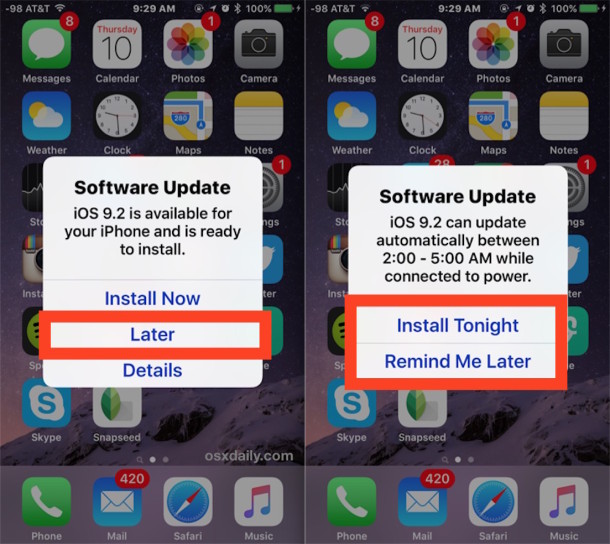
I get it. That “Update Available” notification pops up at the worst times, and it’s tempting to hit “Remind Me Later” forever. But here’s what most people don’t realize — those updates aren’t just about new emoji or a slightly redesigned settings menu. They’re patching real security holes that hackers already know about and are actively trying to exploit.
When you skip an update, you’re essentially leaving a door open that the manufacturer already built a lock for. Just turn on automatic updates and forget about it. If you’d rather do it manually, at least make it a weekend routine. And pay extra attention to browser, banking, and messaging app updates — those are the ones attackers go after first.
Be Picky About What You Download
We all love trying new apps, but not every app deserves a spot on your phone. Stick to Google Play or the Apple App Store, and even then, take a minute before you hit “Install.” Check who made it. Read some reviews — especially the negative ones. Look at how many people have actually downloaded it.
Here’s a good rule of thumb: if a calculator app is asking for permission to access your camera and contacts, something’s off. That’s not normal. Walk away and find a different one.
And please, stay away from downloading apps from random websites. I know someone might send you a link saying “this app is amazing, it’s not on the store yet” — that’s almost always a red flag.
Go Through Your App Permissions (Yes, Right Now)
When’s the last time you actually looked at what your apps have access to? Most of us tap “Allow” during setup and never revisit it. Meanwhile, that weather app you downloaded two years ago still has access to your microphone and contacts for no good reason.
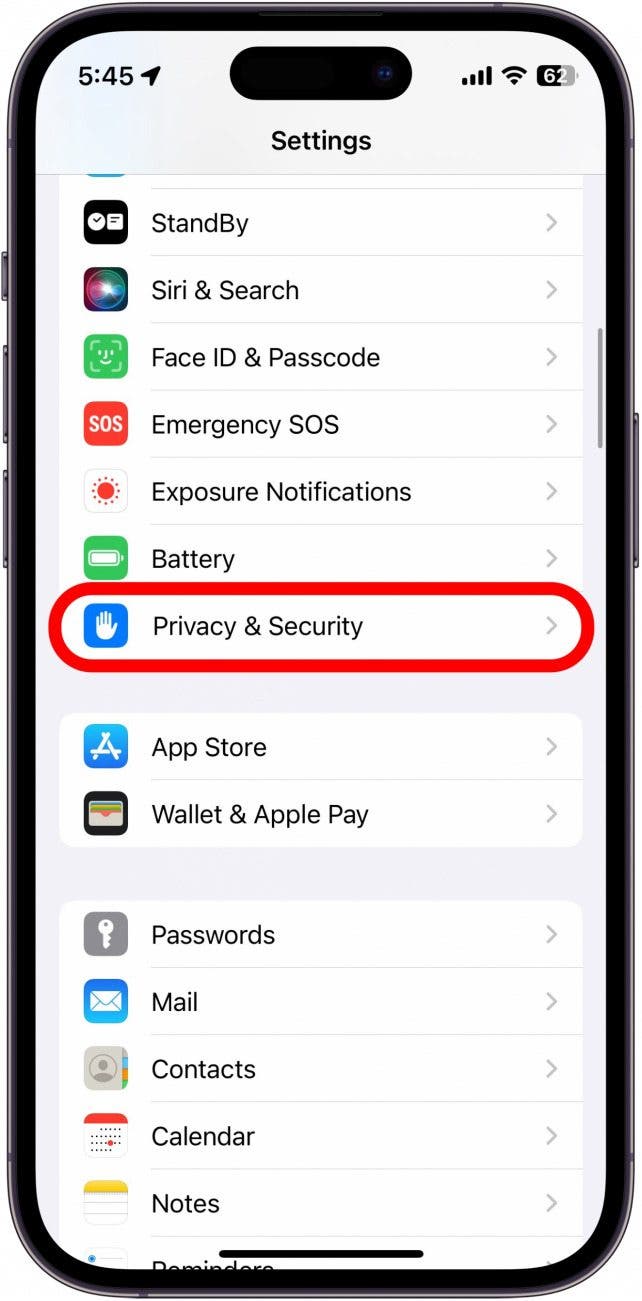
Both iPhones and Android phones make it pretty easy to check this. Dig into your settings, look at permissions by category — camera, microphone, location, contacts — and start revoking anything that doesn’t make sense. One setting I’d really encourage you to use: “Allow location only while using the app.” There’s no reason a food delivery app needs to track where you are 24/7.
Do this once a month. It takes five minutes and it’s worth it.
Passwords: Stop Reusing Them, and Get a Password Manager
I know you’ve heard this before too, but it bears repeating because so many people still do it — using the same password (or slight variations of it) across a dozen accounts. The problem is obvious once you think about it: one breach, and suddenly every account with that password is compromised. Attackers know this. They count on it.
The fix is simple — grab a password manager. Bitwarden is free and solid. 1Password is great if you don’t mind paying a few bucks a month. Even the built-in keychains on iPhones and Android phones are miles better than reusing “Fluffy2019!” everywhere. A password manager generates long, random, unique passwords for every account and remembers them all for you. You just need one strong master password to unlock the vault.
Now Let’s Talk About 2FA and MFA — This Part Is Really Important
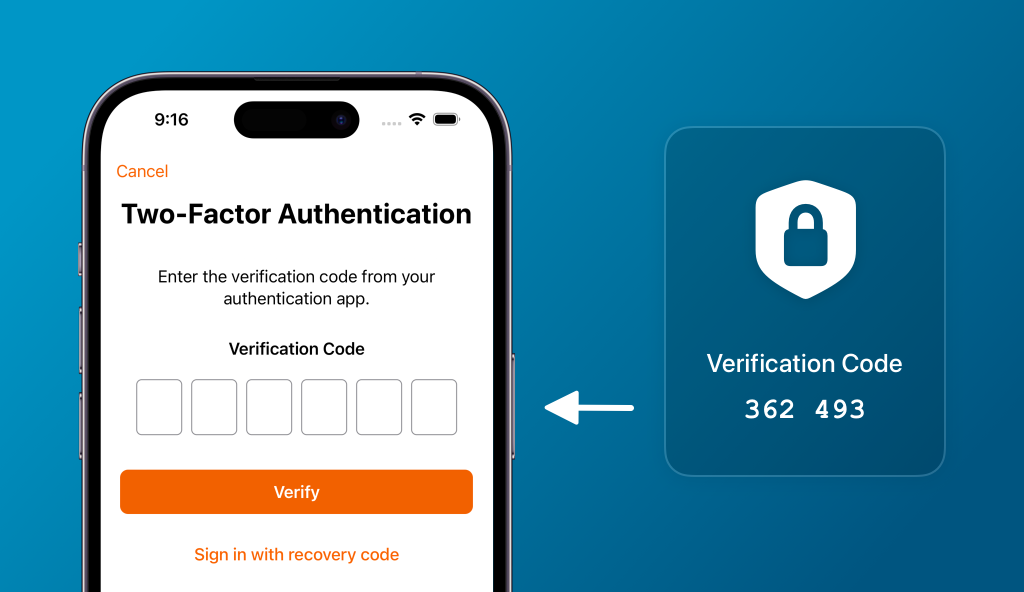
Even the best password in the world isn’t bulletproof. That’s where Two-Factor Authentication (2FA) comes in — or Multi-Factor Authentication (MFA), which is basically the same idea with more options. The concept is straightforward: after entering your password, you prove it’s really you with a second piece of evidence. Usually that’s a code generated on your phone.
But here’s where a lot of people go wrong — stop relying on text messages for those codes.
I can’t stress this enough. SMS-based verification feels secure because you’re getting a code on your personal phone number, but it’s actually one of the weakest forms of 2FA out there. There’s an attack called SIM-swapping where a criminal calls your phone carrier, pretends to be you, and convinces them to transfer your number to a new SIM card. Just like that, they’re getting your verification codes instead of you. It happens more often than you’d think. On top of that, text messages can be intercepted through known vulnerabilities in the phone network itself, or someone could simply glance at your lock screen notification.
Use Google Authenticator instead. It’s free, it works on both Android and iPhone, and it generates codes right on your device that change every 30 seconds. Those codes never travel over a cell network. They work offline. They can’t be SIM-swapped. It’s a night-and-day difference from SMS.
Here’s how to set it up:
Go download Google Authenticator from whichever app store you use. Then, one by one, open the security settings on your important accounts and look for the option to enable 2FA with an authenticator app (not SMS). You’ll usually scan a QR code with the app, and that’s it — you’re linked up. Most services will also give you a set of backup codes. Write those down and keep them somewhere safe offline, like in a locked drawer. You’ll need them if you ever lose your phone.
Start with your email. This is critical. Your email is the skeleton key to your entire digital life. If someone gets into your Gmail or Outlook, they can reset the password on pretty much every other account you own — your bank, your social media, your cloud storage, everything. So make your email the very first account you register in Google Authenticator. Your personal email, your work email, all of them. Once those are locked down, move on to banking apps, social media, and anything else that holds sensitive information.
If Google Authenticator isn’t your thing, Microsoft Authenticator and Authy are solid alternatives that work the same way. The point is: pick one and use it. Any app-based authenticator is worlds ahead of waiting for a text message.
I like to think of it this way — your password is the lock on the door, and your authenticator is the deadbolt. You wouldn’t install a deadbolt and then leave it unlatched, right?
Don’t Tap That Link
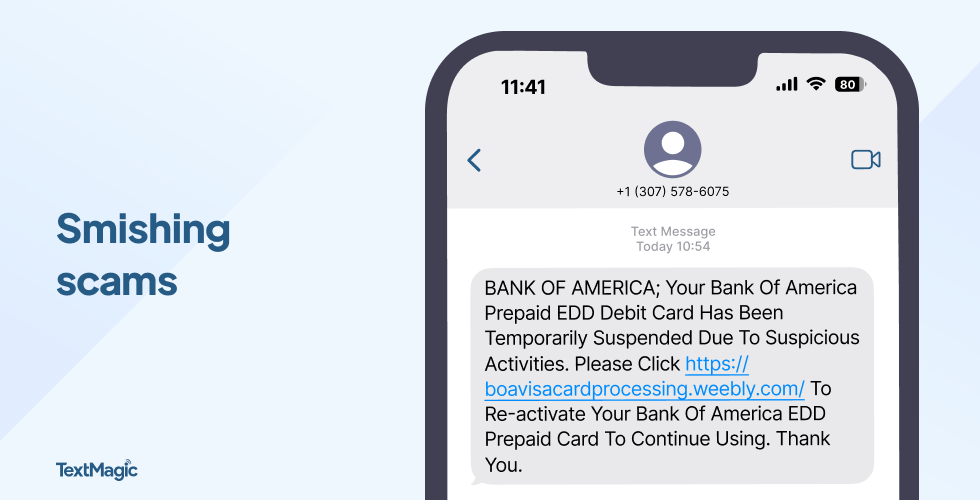
Scam texts have gotten disturbingly good. You might get a message that looks exactly like it came from your bank: “Unusual activity detected on your account. Tap here to verify.” The formatting is right, the urgency feels real, and the link looks almost legitimate. Almost.
This is called smishing — phishing through SMS — and it’s exploding right now. Same goes for suspicious links on social media, in DMs, or even in group chats from accounts that got hacked.
My personal rule is simple: if a text or message wants me to tap a link, I don’t. If it claims to be from my bank, I open the bank app directly or type the URL into my browser myself. If a “friend” sends me a weird link out of nowhere, I call them first. It takes an extra minute, and it’s saved me more than once.
Public Wi-Fi Is Not Your Friend
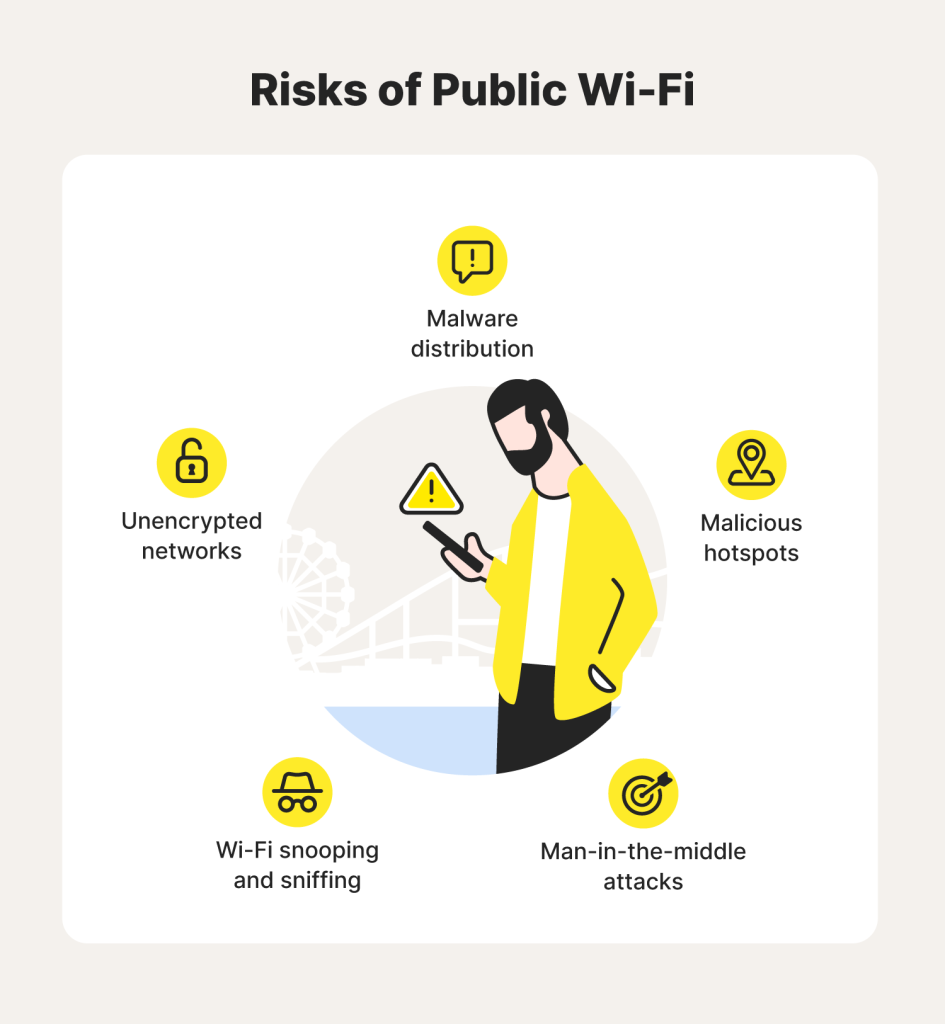
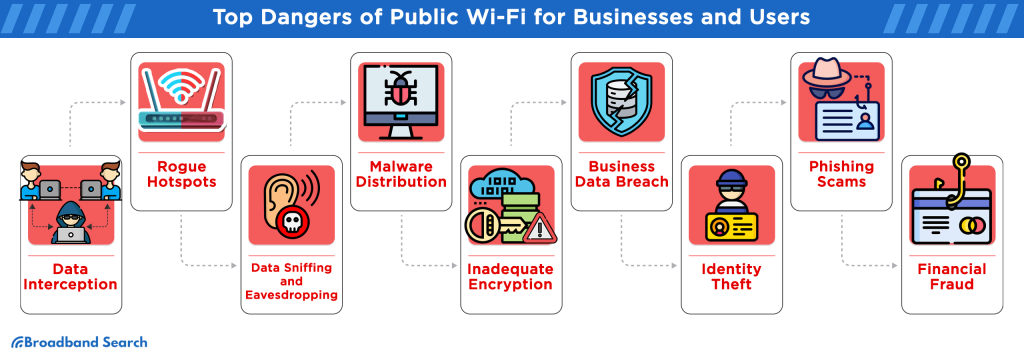
That free Wi-Fi at Starbucks or the airport lounge? It’s convenient, sure. It’s also a playground for anyone who knows how to sniff network traffic. On an unencrypted public network, someone sitting three tables away could potentially see what you’re browsing, what you’re typing, and what data your apps are sending.
So here’s the deal: never check your bank account or enter any passwords while you’re on public Wi-Fi. If you absolutely have to get online, use a VPN — a Virtual Private Network — which encrypts everything between your phone and the internet so nobody can peek at it. There are good ones out there like Mullvad, ProtonVPN, and NordVPN.
And while you’re at it, check your home Wi-Fi setup too. Make sure your router is using WPA3 encryption (or at least WPA2) and that the password isn’t still the default one printed on the bottom of the router. You’d be surprised how many people never change that.
Set Up “Find My Phone” Before You Need It
Both Apple and Google have built-in tools that let you locate, lock, and completely wipe your phone remotely. On iPhone it’s “Find My iPhone.” On Android it’s “Find My Device.” These are lifesavers if your phone gets lost or stolen — but only if you’ve turned them on ahead of time.
Take two minutes right now to make sure this is enabled. While you’re at it, jot down your phone’s IMEI number (you can usually find it in Settings under “About Phone”). If your phone is stolen, that number can help law enforcement track it down and can also be used to blacklist the device so it can’t be activated on another network.
Backup Your Stuff

Security isn’t just about keeping bad guys out. It’s also about making sure you don’t lose everything if something goes sideways. A phone can be stolen, dropped in water, or just randomly die one morning — it happens.
Set up automatic encrypted backups through iCloud or Google Drive. Or if you’re the hands-on type, back up to your computer periodically using iTunes or Android File Transfer. The key word here is “automatic” — if you have to remember to do it, you probably won’t.
When the worst happens, a recent backup turns a disaster into an inconvenience. Without one, you might lose years of photos, notes, and contacts permanently.
Don’t Fall for Social Engineering
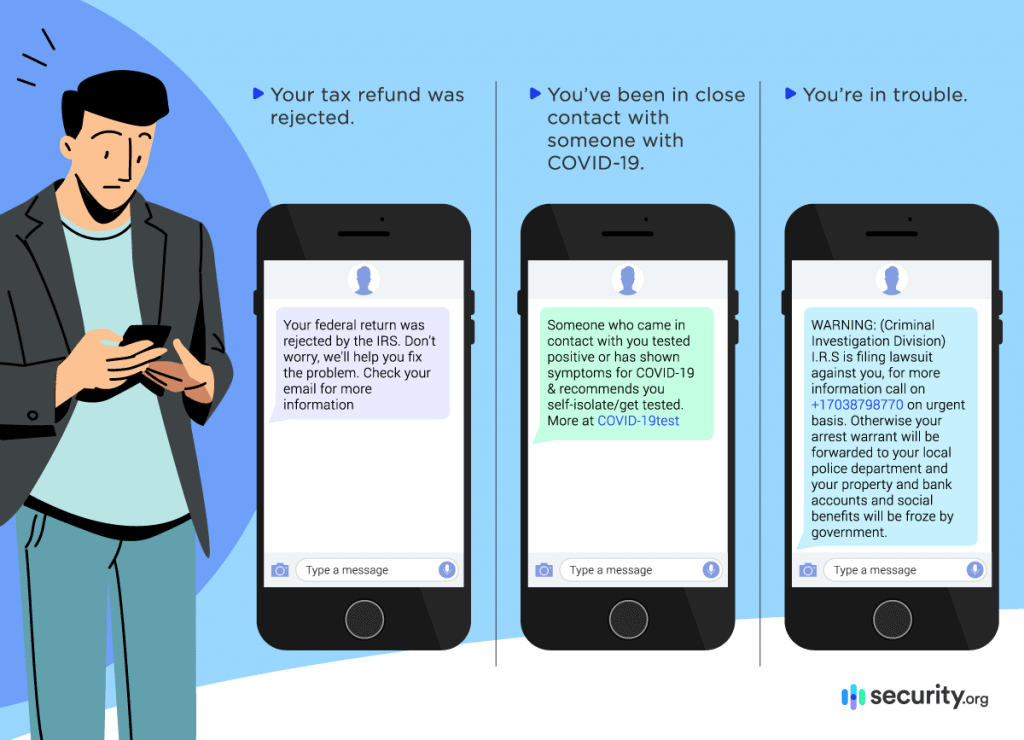
Not every attack comes through your screen. Social engineering is just a fancy way of saying “tricking a human being” — and it works way more often than you’d expect.
Maybe someone calls you pretending to be from Apple support and asks for your passcode to “verify your account.” Maybe a stranger glances over your shoulder on the train while you type your banking PIN. Maybe that fun quiz on Facebook — “What was your first pet’s name? What street did you grow up on?” — is actually harvesting answers to common security questions.
Stay alert in public. Shield your screen when entering sensitive info. And remember: no legitimate company — not your bank, not Apple, not Google — will ever call or text you asking for your password, your PIN, or a verification code. If someone does, hang up. It’s a scam. Every single time.
Quick Security Checklist
Before you close this tab, run through these real quick:
- Do you have a strong passcode and biometric lock on your phone?
- Are automatic updates turned on for your OS and apps?
- Are you only downloading apps from official stores?
- Have you reviewed your app permissions recently?
- Are you using a password manager with unique passwords for every account?
- Is Google Authenticator (or a similar app) set up on your important accounts — especially your email?
- Have you stopped using SMS for verification codes?
- Are you being careful with links in texts and messages?
- Do you use a VPN on public Wi-Fi?
- Is remote tracking and wiping enabled on your phone?
- Are your backups running automatically?
- Are you aware of social engineering tricks?
If you checked off most of those, you’re in much better shape than the average person. If not, pick two or three to tackle this weekend. You don’t have to do everything at once — just start moving in the right direction.
Wrapping Up
Look, nobody’s going to get phone security perfect. We’re all busy, we’re all a little lazy sometimes, and technology moves fast. But the truth is, most attacks succeed not because of sophisticated hacking — they succeed because someone left a simple door open.
Locking that door doesn’t take long. A stronger passcode here, an authenticator app there, a quick check of your app permissions over coffee. These small things add up to something that’s genuinely hard for attackers to crack.
Your phone holds your whole life. Spend a few minutes this week making sure it stays yours.
okbet app
April 6, 2026Dude, the okbet app is legit. It’s super user-friendly and lets me get straight to the action. No more desktop needed! Get yours here okbet app.
malbet
April 6, 2026Hey there! Are you looking for Malbet? I found it here! Easy to use and keep up with all the action. malbet
keonhacai 5 net
April 6, 2026Yo, just found keonhacai 5 net – seems like they got the goods! Checking out the odds now. Hope I win big! Check it out here keonhacai 5 net.
868vipbet
April 21, 2026868vipbet seems interesting. The VIP perks are tempting. Will be signing up later today! Just give it a try, you’ll love it!! 868vipbet
ug7777
April 21, 2026Alright, ug7777 has been popping up everywhere lately. Time to see what the hype is all about. Wish me luck! Check it out for yourself: ug7777
vbetaffiliates
April 21, 2026Looking for some good affiliate programs, and vbetaffiliates came up. Gonna dig around and see if they’ve got some sweet deals. Worth checking out if you’re an affiliate: vbetaffiliates
mx555casino
May 6, 2026Finally found a place where the payouts are actually fair and fast. The variety of games is impressive and the vibe is just right. Definitely my new favorite spot at mx555casino.
idmahajitu
May 6, 2026Finally found a site that actually pays out on time. The game selection is huge and the support team is very helpful. Check out idmahajitu for sure.
playdoitcasino
May 6, 2026If you are looking for some excitement and a great variety of table games this is the place. I have spent hours here and it is never boring. Try playdoitcasino.
ExoWatts
June 8, 2026Great content! Keep up the good work!
pkvblink
August 1, 2026A very stable platform with a great community. The gameplay is fair and the bonuses are actually usable unlike other sites. I feel lucky playing at pkvblink
npvegassweepsbackend
August 1, 2026Everything works perfectly behind the scenes here. The sweeps system is easy to manage and the rewards are generous. A seamless experience with npvegassweepsbackend
luckybuzzlogin
August 1, 2026Logging in is fast and the dashboard is very intuitive. I love how I can track my progress and winnings in real time. Always a pleasure at luckybuzzlogin
unlocker
August 10, 2026unlocker.ai – The Ultimate AI Tool for Bypassing Restrictions and Unlocking Content Seamlessly!
vkyatapk
August 14, 2026Getting the APK set up was totally painless and now I have instant access to everything. The games run great even on older devices and the graphics still look crisp. Really solid setup. vkyatapk
rabetcasino
August 14, 2026What a refreshing experience compared to other sites I have tried recently. Everything loads smoothly and the customer service team goes the extra mile to make sure visitors are happy. A truly reliable destination for casual gaming.
fun88mxcc
August 14, 2026As a player in Mexico I have found it hard to locate a site that combines fun with reliability but this one nailed it. The interface is vibrant and the sports betting options are fantastic. I also love how quickly they process winnings and the daily rewards keep the excitement alive. A truly trustworthy name in the space. fun88mxcc
anti-violence-722976
August 20, 2026[450005]supplies professional anti-violence equipments and solutions for the whole world with strong and perfect production capacity. anti-violence.org
phtayacomlogin
August 24, 2026This site has a really great community feeling. The bonuses for new members are actually generous and not just bait. Love phtayacomlogin!
winjiliphlogin
August 25, 2026Logging in is so quick and the site doesn’t lag at all. I love how easy it is to manage my account here. winjiliphlogin is the way to go.
ph979jl
August 26, 2026Playing mobile casino games here has been such a smooth experience and I love how fast the withdrawals process through local banking options. The interface feels really welcoming for beginners and the game selection keeps me entertained during my breaks. Really appreciate the clear information you share with the community. ph979jl
brbet959win
August 27, 2026Great odds and fast payouts. I had a few questions and the support team handled them quickly. If you want a winning streak try brbet959win.
vipphlogin
August 28, 2026The VIP treatment here is actually real. I feel like a valued player and the rewards keep coming. If you want a premium feel, head over to vipphlogin.
365 bet
August 28, 2026[1466]365 bet Official Login | বিকাশ ডিপোজিট ও সেরা লাইভ ক্যাসিনো,365 bet অফিসিয়াল প্ল্যাটফর্মে যোগ দিন। এখানে খুব সহজে অ্যাপ ডাউনলোড এবং বিকাশ দিয়ে দ্রুত ডিপোজিট করা যায়। অনলাইন স্লট গেমের নিয়ম শিখে আজই শুরু করুন। visit: 365 bet
br881betwin
August 30, 2026Best betting experience I have had in months. The odds are fair and the payout process is transparent. Definitely check out br881betwin.
okadaplaycasino
August 31, 2026Super impressed with the customer support team, they answered my questions in minutes. The gameplay is fair and rewarding. okadaplaycasino is legit!
ph39jiliph
September 1, 2026The best platform I have encountered in the region. Very user friendly and the promotions are actually useful for players. Big thanks to ph39jiliph.
ph99jl
September 1, 2026Really impressed with the customer service here. They helped me resolve my deposit issue in minutes. ph99jl is definitely one of the most trustworthy platforms I have tried.
bdkv8
September 2, 2026Really liking the variety of games available here. It is easy to navigate and the bonuses are actually fair. Give bdkv8 a try!
phjiliok
September 3, 2026Finally found a site that doesn’t lag during peak hours. The game variety is impressive and the registration process was a breeze. Love it here! Try phjiliok
iwwin
September 3, 2026[4650]iwwin – Link vào trang chủ, tải app và hướng dẫn chơi casino,iwwin cung cấp link vào trang chủ chính thức, hướng dẫn tải app iwwin nhanh chóng cùng cách chơi baccarat online và luật chơi xóc đĩa online chi tiết. Truy cập ngay! visit: iwwin
pkdk1947
September 3, 2026I have tried many platforms but this one feels different. The variety of games is amazing and the support team is very helpful. Visit pkdk1947
bdvb89
September 6, 2026I’ve been trying a few different platforms lately and this one really stands out. The interface is smooth and everything loads fast. Definitely worth checking out bdvb89
98jililogin
September 6, 2026Great selection of games and the loyalty rewards are actually helpful. I am really enjoying my time on 98jililogin.
bet55game
September 6, 2026Such a chill vibe and the bonuses for new users are actually generous. I’ve tried many sites but bet55game stands out for its honesty.
wild trucks 465
September 6, 2026wild trucks demo online wild truck online
Bernardmib
September 7, 2026Нужен спорт инвентарь? оборудование для физического развития дошкольников комплексные решения для оснащения спортзалов школ и образовательных учреждений. Спортивные снаряды, тренажеры, мячи, маты и инвентарь для проведения уроков физкультуры и спортивных мероприятий.
KennethFut
September 8, 2026Зламався пульт від кондиціонера? універсальний пульт для кондиціонера універсальні та оригінальні моделі для різних марок кліматичної техніки. Підберіть сумісний пульт по виробнику та моделі кондиціонера, оформіть замовлення з доставкою та швидко відновіть зручне керування пристроєм.
Thomasnot
September 8, 2026браслеты для выставок силиконовый браслет со своей надписью
GeraldFes
September 8, 2026Главные факты здесь: https://dfprices.ru
ErnestMom
September 8, 2026Узнать все детали: https://siten.ru
Jesusshoon
September 8, 2026Узнать все детали: https://mirsmi24.ru
novosti almaty 453
September 8, 2026последние новости алматы новости алматы
Roccosmemo
September 8, 2026Актуальный материал: https://carfrance.ru
DavidDrato
September 8, 2026Смотреть подробный отчет: https://zetfail.ru
Jessesok
September 8, 2026Перейти к прочтению: https://diabetschoolmakisheva.ru
you777game
September 8, 2026Honestly one of the most entertaining platforms I have tried lately. The game variety is impressive and the interface is very user friendly. Highly recommend you777game to everyone.
RobertRox
September 9, 2026Hits of the day https://www.gtavi-game.website.yandexcloud.net
wild trucks 734
September 9, 2026The masterfully designed wild truck slot real money wild trucks free spins rules serves up powerful trucks, rewarding bonuses, and intense excitement. Accessible mechanics, swift payouts, and favorable winning odds make this game a premier choice. Grab combinations of Wild symbols, activate bonus rounds, and become the king of the routes!
FelixPralm
September 9, 2026Discover the full post gta6-news.website.yandexcloud
Josephtaf
September 9, 2026Read the complete article http://www.valorant-news.website.yandexcloud.net/
Ralphdiamn
September 9, 2026What’s changed https://gta6-news.website.yandexcloud.net
GregoryChepe
September 9, 2026Details by clicking http://www.pubgnews.website.yandexcloud.net
LouisNaize
September 9, 2026All the latest here formula1 website yandexcloud
Richardnab
September 9, 2026Fresh news on page footballnews website yandexcloud
Richardsat
September 9, 2026Just what you need cs2-news.website.yandexcloud
Donalddep
September 9, 2026The most interesting click cricket website yandexcloud
5jljlslots
September 9, 2026If you love slots then this is the place to be. The graphics are crisp and the bonuses are actually helpful. Love 5jljlslots
wild trucks 406
September 9, 2026The famous wild truck demo wild trucks win potential showcases epic trucks, rich bonuses, and heart-pounding excitement. Intuitive mechanics, rapid payouts, and excellent winning odds make this casino hit a fantastic choice. Grab combinations of Wild symbols, reap bonus rounds, and claim your title as the king of the routes!
tovary dlya ohoty 463
September 10, 2026Любишь охоту? товары для охоты поможет подобрать широкий выбор для охоты и отдыха на природе. В каталоге собраны специализированное снаряжение, одежда, обувь, оптика, аксессуары и туристическое снаряжение. Выбирайте подходящие товары, ориентируйтесь на свои задачи и заказывайте необходимые товары. Большой ассортимент поможет собрать комплект для охоты или отдыха на природе.
dostavka cvetov omsk 226
September 10, 2026Заказать онлайн цветы с доставкой Омск можно через каталог. Подбирайте нежные тюльпаны для коллег. В ассортименте собраны сборные композиции. Указывайте адрес получателя и делайте приятные сюрпризы на праздник.
supernatural 87
September 10, 2026Сериал в сети сверхъестественное 12 сезон в отличном качестве доступно на сайте. Все сезоны и серии можно смотреть онлайн. Наблюдайте за историей Сэма и Дина, которые защищают людей от сверхъестественных угроз. Вместе с героями встречаются демоны, ангелы, призраки и монстры. Кастиэль помогает братьям, а опасные враги готовят новые испытания. Выбирайте нужный сезон и серию и смотрите Сверхъестественное онлайн.
allgranit 524
September 10, 2026Ищете достойный памятник https://allgranit.ru близкому человеку? Компания Allgranit предлагает гранитные памятники напрямую от производителя — без посредников, переплат и долгих ожиданий. Мы создаём мемориалы, которые сохраняют память о дорогих людях на долгие годы.
fastek 763
September 10, 2026Компания fastek проектируем и поставляем надежные фасадные системы для коммерческих и жилых объектов, обеспечивая долговечность, энергоэффективность и безупречный внешний вид здания под ваши задачи.
dvordekor 947
September 10, 2026Ищете тротуарную плитку https://dvordekor.by борты или заборные блоки в Минске? Компания „ДворДекор“ предлагает широкий выбор материалов для ландшафтного дизайна и благоустройства. Посетите dvordekor.by/about и ознакомьтесь с ассортиментом!
BrucevaP
September 10, 2026Интересуешься играми? http://www.xbdb.ru (Xbox Data Base) – специализированный информационный портал, посвященный индустрии видеоигр с акцентом на экосистему Xbox и PC. Сайт оперативно публикует актуальные новости, включая анонсы крупных игровых релизов, обновления популярных MMORPG, информацию о пополнении каталога Game Pass, а также слухи и инсайды от известных студий.
RobertQuash
September 10, 2026Выбрать прямо сейчас https://backpacks.ru/brand/ucon-acrobatics рюкзаки и сумки от Elliker, Ucon Acrobatics, Artsac, Consigned для города. В каталоге собраны поясные сумки. Сравнивайте с учетом необходимого объема. Учитывайте защиту содержимого. Оформляйте заказ через сайт и оформляйте доставку по нужному адресу.
Edwardkeeby
September 11, 2026Подобрать в любое удобное время https://backpacks.ru рюкзаки и сумки от Elliker, Ucon Acrobatics, Artsac, Consigned на каждый день. На сайте можно найти шопперы. Рассматривайте для конкретных задач. Оцените количество отделений. Заказывайте выбранный аксессуар через сайт и заказывайте аксессуары для города и путешествий.
ggjiliapp
September 11, 2026Best mobile experience so far. The graphics are top notch and ggjiliapp runs perfectly on my phone.
bdb444
September 12, 2026I’ve tried a few sites lately, but this one really stands out for the smooth interface. Had a great run yesterday! Check out bdb444 for a solid experience.
aaaphslot
September 12, 2026The hit rate here is way better than other sites I have used in the Philippines. Really feeling the luck today. Big thanks to aaaphslot!
utverzhdenie tipa sredstv izmereniy 418
September 13, 2026Нужно иптытание средств измерений? получить утверждение типа средств измерений организация испытаний, подготовка документов, получение свидетельства и внесение СИ в Госреестр. Сопровождение процедуры на всех этапах с учетом требований законодательства.
betakiapp
September 13, 2026The app version is way better than the browser. I can place my bets on the go without any lag. Great experience overall with betakiapp
idzoro77
September 14, 2026Mantap sekali pengalamannya di sini. Proses deposit dan withdraw sangat cepat, tidak pakai ribet. Sangat puas dengan layanannya. Coba cek idzoro77
vnf168apk
September 14, 2026The app version is a game changer. It is so much smoother than using a mobile browser and the layout is spot on. Give vnf168apk a try
StevenEnacy
September 16, 2026Media teams comparing suppliers usually buy Twitch accounts in small test lots first, checking how the logins survive a week of normal browsing before committing to volume. That approach works well with npprteamshop.com, since inventory notes cover proxy recommendations, warm-up pacing and the exact recovery mail bundled with every profile. Replacement windows stay open long enough for a proper trial, and the support desk replies in English at any hour.
EddieMen
September 16, 2026Стабильность связок часто упирается в качество исходников, и здесь выручает ассортимент по ссылке https://npprteamshop.com/yandex/ с аккаунтами разной степени отлёжки. Профили с длительной историей заметно устойчивее при прохождении ЗРД и повторных проверках, а свежие подходят для массовых регистраций в сторонних сервисах. Специалисты NPPR Team Shop дают рекомендации по первому запуску и держат гарантию на вход в течение оговорённого срока.
RolandViown
September 16, 2026Our top selection ???? ???
radio dacha 825
September 17, 2026Просто через браузер онлайн радио дача прямой эфир без регистрации. Во время эфира собраны лучшие песни. Начинайте прослушивание дома. Слушайте музыку с компьютера без сложных настроек.
autsorsing ohrany truda 597
September 17, 2026Рассмотреть поддержку охрана труда аутсорсинг для бизнеса. Эксперты по охране труда помогают наладить текущее сопровождение. В перечень работ входит организация обучения. Все материалы разрабатываются исходя из специфики предприятия. При возникновении задачи отдельные процессы берет на себя профильная команда. Привлечение специалистов помогает систематизировать работу с документами. Руководителю можно не контролировать каждый этап без поддержки специалистов. Узнайте состав работ для конкретной организации. Оставьте заявку онлайн и получите помощь в ведении охраны труда.
dailyfacts 18
September 17, 2026Актуальні матеріали для читачів https://dailyfacts.com.ua містить цікаві публікації та тематичні огляди.
dailymail 101
September 17, 2026Сучасний портал для аудиторії https://dailymail.com.ua/zdorovia.html охоплюють різні теми та практичні питання.
databan 759
September 17, 2026Сучасний портал для аудиторії https://databank.com.ua/didzhytal.html допомагає знаходити актуальну інформацію та нові матеріали.
dobraporada 555
September 17, 2026Цікаві публікації для читачів https://dobraporada.com.ua/domivka.html збирає актуальні публікації для щоденного читання.
expertka 753
September 17, 2026Пізнавальний сайт для аудиторії https://expertka.com.ua допомагає знаходити актуальну інформацію та нові матеріали.
elementarno 128
September 17, 2026Сучасний портал для читачів https://elementarno.com.ua збирає актуальні публікації для щоденного читання.
infokom 30
September 17, 2026Цікавий ресурс для читачів https://infokom.org.ua допомагають дізнаватися нове й стежити за актуальними подіями.
infopark 868
September 17, 2026Актуальні матеріали для читачів https://infopark.com.ua/tvaryny.html пропонує різноманітні статті й рекомендації.
informa 896
September 17, 2026Корисний ресурс для читачів https://informa.com.ua/budivnytstvo.html містить цікаві публікації та тематичні огляди.
infoquorum 905
September 17, 2026Актуальний сайт для читачів https://infoquorum.com.ua/budivnytstvo.html зібрані для зручного читання онлайн.
inquire 375
September 17, 2026Інформаційний ресурс для аудиторії https://inquire.com.ua збирає актуальні публікації для щоденного читання.
infoteka 873
September 17, 2026Цікавий портал для користувачів https://infoteka.com.ua пропонує новини, статті та корисні поради.
infostat 486
September 17, 2026Корисний ресурс для користувачів https://infostat.com.ua допомагає знаходити актуальну інформацію та нові матеріали.
mediaworld 272
September 17, 2026Корисний портал для читачів https://mediaworld.com.ua допомагає знаходити актуальну інформацію та нові матеріали.
metasearch 40
September 17, 2026Пізнавальний сайт для аудиторії https://metasearch.com.ua/budivnytstvo.html зібрані для зручного читання онлайн.
massmedia 307
September 17, 2026Інформаційний ресурс для аудиторії https://massmedia.one/navchannia.html охоплюють різні теми та практичні питання.
magazine 907
September 17, 2026Корисні статті для користувачів https://magazine.com.ua/tekhnolohii.html пропонує новини, статті та корисні поради.
Jamessob
September 17, 2026Non-English vocals are a wildcard. Run a verse in your language through the ai music maker and listen for mangled stress and invented syllables. Some tools are excellent in English and unusable elsewhere, and the marketing never says so.
f1688vip
September 17, 2026If you are looking for a VIP experience with great rewards, this is the spot. Everything from registration to withdrawal was seamless. I’m really happy with f1688vip.
vnss88
September 18, 2026Really impressed with the customer support here. They solved my issue in minutes and the games are top notch. Give vnss88 a try for sure.
RichardMoill
September 18, 2026A comprehensive resource https://healthfare.ca/ covering different aspects of health and everyday well-being. The resource provides informative publications on food choices, along with helpful tips. The site also offers product reviews. Among the main topics are wellness practices, healthy eating and diet, physical activity, self-care, and overall well-being.
autsorsing ohrany truda 854
September 18, 2026Воспользоваться комплексное сопровождение аутсорсинг по охране труда стоимость с учетом специфики деятельности. Опытная команда контролируют документооборот. При комплексном обслуживании выполняется проведение инструктажей. Локальные нормативные акты проверяются под конкретные условия работы. При возникновении задачи ведение направления можно передать внешним специалистам. Внешнее сопровождение позволяет систематизировать работу с документами. Руководителю можно не тратить рабочее время на рутинные задачи. Рассчитайте индивидуальный расчет по вашему перечню работ. Получите предложение онлайн и передайте необходимые задачи экспертам.
radio dacha 36
September 18, 2026Быстро сейчас радио дача слушать онлайн в хорошем качестве. В онлайн-трансляции собраны любимые песни. Начинайте прослушивание на работе. Следите за программами на любом устройстве через интернет.
dostavka buketov omsk 422
September 18, 2026Подобрать доставка цветов Омск через сайт. В каталоге представлены авторские букеты. Находите размер букета в знак внимания. Выберите способ получения и получите букет в удобное время.
Charleselist
September 18, 2026Выгодно прямо сейчас купить джинсы на каждый день. В ассортименте можно найти джинсы свободного кроя. Находите модель по фигуре для повседневной носки. Учитывайте особенности кроя. Оформляйте заказ онлайн и получайте покупку с доставкой.
overview 906
September 18, 2026Сучасний портал для аудиторії https://overview.com.ua зібрані для зручного читання онлайн.
press-express m
September 18, 2026Корисні статті для користувачів https://press-express.com.ua/didzhytal.html збирає актуальні публікації для щоденного читання.
prezza z
September 18, 2026Корисні статті для користувачів https://prezza.com.ua містить пізнавальні матеріали та огляди.
revolta 993
September 18, 2026Актуальний сайт для користувачів https://revolta.com.ua/kulinariia.html пропонує різноманітні статті й рекомендації.
speedinfo v
September 18, 2026Корисний портал для всіх https://speedinfo.com.ua/tvaryny.html допомагають дізнаватися нове й стежити за актуальними подіями.
HectorArose
September 18, 2026Если нужна временная регистрация, лучше заранее разобраться в порядке оформления. В Москве важно правильно указать адрес пребывания, подготовить необходимые документы и выбрать законный способ подтверждения проживания: купить регистрацию в москве
HectorArose
September 18, 2026Регистрация в Москве бывает постоянной и временной, поэтому перед оформлением важно понять свои цели. Если проживание ограничено сроком, обычно рассматривают временную регистрацию, а для постоянного проживания может потребоваться прописка – https://moskva-reg69.ru/vremennaya-registratsiya-v-moskve
Howardchoms
September 18, 2026Útmutató az online kaszinók választásához Magyarországon. Ellenőrizd az engedélyt, bónuszfeltételeket, játékokat és fizetési lehetőségeket: Regisztrációs Bónusz Befizetés Nélkül
suntimes 359
September 18, 2026Корисний ресурс для користувачів https://suntimes.com.ua/moda.html зібрані для зручного читання онлайн.
ukrcentral 333
September 18, 2026Актуальні матеріали для користувачів https://ukrcentral.com зібрані для зручного читання онлайн.
ukrchannel f
September 18, 2026Пізнавальний сайт для читачів https://ukrchannel.com пропонує новини, статті та корисні поради.
ua-meta c
September 18, 2026Корисні статті для читачів https://ua-meta.com допомагають дізнаватися нове й стежити за актуальними подіями.
ukrdigest r
September 18, 2026Корисний портал для читачів https://ukrdigest.com допомагають дізнаватися нове й стежити за актуальними подіями.
Matthewtut
September 18, 2026Шлюхи Сургута
Matthewtut
September 18, 2026Шлюхи Сургута тг
Howardchoms
September 18, 2026Útmutató az online kaszinók választásához Magyarországon. Ellenőrizd az engedélyt, bónuszfeltételeket, játékokat és fizetési lehetőségeket: online kaszinókat
ukrglobe 666
September 18, 2026Актуальні матеріали для користувачів https://ukrglobe.com охоплюють різні теми та практичні питання.
zastava 698
September 18, 2026Сучасний портал для аудиторії https://zastava.com.ua допомагає знаходити актуальну інформацію та нові матеріали.
vilnapresa p
September 18, 2026Цікавий портал для користувачів https://vilnapresa.com/domivka.html зібрані для зручного читання онлайн.
vechorka o
September 18, 2026Актуальні матеріали для читачів https://vechorka.com.ua містить цікаві публікації та тематичні огляди.
Davidfet
September 18, 2026Удобно с доставкой стойкие женские духи к празднику. В каталоге предлагаются классические парфюмы. Подбирайте подходящую парфюмерию с учетом предпочтений. Сравните назначение аромата. Добавляйте выбранный аромат в корзину онлайн и покупайте парфюмерию без лишних поездок.
Matthewtut
September 18, 2026Секс Сургут
Howardchoms
September 18, 2026Útmutató az online kaszinók választásához Magyarországon. Ellenőrizd az engedélyt, bónuszfeltételeket, játékokat és fizetési lehetőségeket: Mobil Kaszinó
RobertmiX
September 19, 2026Рассчитать комплексную услугу комплексное seo продвижение нового сайта. Опытные специалисты возьмут под контроль работу с семантикой. На первом этапе формируются структура сайта. В зависимости от тематики расширяются коммерческие факторы. Контроль динамики помогает видеть изменения позиций. Уточните предварительный расчет для своего проекта. Закажите консультацию через сайт и начните работу над поисковой видимостью.
HectorArose
September 19, 2026Если вы планируете жить в Москве дольше короткой поездки, вопрос регистрации лучше решить заранее. Временная регистрация помогает подтвердить адрес пребывания и спокойно заниматься рабочими, учебными или семейными делами – временная регистрация для иностранных граждан на 3 месяца
CharlesPrets
September 19, 2026Marvel Casino – sprawdź bonus, gry, KYC, wypłaty, płatności i status operatora. Analiza faktów, warunków oraz ograniczeń dla użytkowników z Polski: Kasyno Marvel
WaynePat
September 19, 2026Use reliable payment gateway for igaming for accepting payments. Business solution enables automating payment transactions. Depending on configuration provided local payment methods. Setup is carried out via the API. Before choosing it is recommended to consider transaction limits. Calculate available payment methods taking into account the platform features. Contact our specialists online and learn the integration procedure.
CharlesPrets
September 19, 2026Marvel Casino – sprawdź bonus, gry, KYC, wypłaty, płatności i status operatora. Analiza faktów, warunków oraz ograniczeń dla użytkowników z Polski: Marvel Casino 55 zł bez depozytu
CharlesPrets
September 19, 2026Marvel Casino – sprawdź bonus, gry, KYC, wypłaty, płatności i status operatora. Analiza faktów, warunków oraz ograniczeń dla użytkowników z Polski: Marvel Casino rejestracja
MatthewMox
September 19, 2026Просто сейчас радио дача без остановки и рекламы в любое время. В эфире транслируются песни разных лет. Открывайте плеер дома. Слушайте музыку со смартфона в несколько кликов.
LarrygoR
September 19, 2026An informative online resource healthfare about health, proper nutrition, and everyday well-being. The website features useful materials on food choices, along with expert guidance. The resource also features information about various products. Among the main topics are balanced daily habits, nutrition and food choices, physical activity, self-care, and overall well-being.
CharlesBuiny
September 19, 2026Современный ресурс https://russkajakrasota.ru о уходе за собой. Читайте полезные статьи о трендах, отношениях и повседневной жизни.
DonaldProri
September 19, 2026Полезный портал https://vladimir-courses.ru о событиях в разных регионах. Здесь представлены статьи об экономике и актуальных событиях.
Andrewlal
September 19, 2026Информационный сайт https://kiaportal.ru для автомобилистов. Здесь собраны советы по эксплуатации, а также полезные рекомендации для автолюбителей.
DavidUnisa
September 19, 2026Познавательный портал https://mulino58.ru с информацией о жизни региона. Находите интересные статьи об услугах и других важных темах.
ArturoDax
September 19, 2026Полезный сайт https://clanauto.ru для любителей автомобилей. Здесь представлены советы по ремонту, информацию о моделях и другие автомобильные темы.
Eddieassug
September 19, 2026Вкусный портал https://kulinarika.ru для любителей готовить. Здесь представлены идеи блюд для праздничного стола, а также полезные советы для кухни.
Jamesunice
September 19, 2026Полезный портал https://castor-mebel.ru о интерьере. Изучайте советы о выборе мебели, обустройстве жилья и домашнем комфорте.
DavidUnisa
September 19, 2026Информационный портал https://ru-nedvizhimost.ru о недвижимости. Изучайте статьи о строительстве домов, оформлении сделок и операциях с недвижимостью.
VincentJok
September 19, 2026Тематический портал https://mebel-lotos18.ru о интерьере. На сайте можно найти идеи по выбору мебели, благоустройству участка и обустройству пространства.
ArturoDax
September 19, 2026IT сайт https://no-lamer.ru о компьютерах. На сайте собраны обзоры программ, рекомендации по Windows и другие IT-материалы.
Edwinsam
September 19, 2026All the latest is here http://www.cricketscore.website.yandexcloud.net
MichaelCap
September 19, 2026Top picks for you nekopara
Williamdox
September 19, 2026Expand details https://conversionweb.github.io/conversion/
Charlesbup
September 19, 2026Learn more here https://nukitashi.pro/
Michaelenult
September 19, 2026Instant access here premier league jatekok hu
Briandaump
September 19, 2026New releases are here winter memories
Austintaf
September 19, 2026Complete guide here https://www.poki-game.hu
Josephprids
September 19, 2026подписать контракт на военную службу
MichaelKaf
September 19, 2026Прописка в СПб больше подходит тем, кто окончательно решил связать свою жизнь с городом. Если же Санкт-Петербург стал местом учебы, работы или временного переезда, обычно рассматривают регистрацию по месту пребывания без изменения постоянного адреса: прописка в спб цена
infoquorum m
September 19, 2026Корисний ресурс для користувачів https://infoquorum.com.ua/aktualne.html допомагають дізнаватися новей стежити за актуальними подіями.
infopark w
September 19, 2026Актуальні матеріали для користувачів https://infopark.com.ua пропонує різноманітні статті й рекомендації.
MichaelKaf
September 19, 2026Если вы живете в Санкт-Петербурге большую часть года, но постоянно прописаны в другом городе, стоит разобраться с регистрацией по месту пребывания. Она относится именно к временному адресу и оформляется на определенный период, регистрация
dobraporada r
September 19, 2026Корисні статті для читачів https://dobraporada.com.ua збирає актуальні публікації для щоденного читання.
databank h
September 19, 2026Сучасний портал для аудиторії https://databank.com.ua пропонує новини, статті та корисні поради.
altavista j
September 19, 2026Пізнавальний сайт для читачів https://altavista.org.ua пропонує різноманітні статті й рекомендації.
Josephprids
September 19, 2026где заключить контракт на сво
EmanuelTok
September 19, 2026Interesting angle on myth inspired digital entertainment. Thanks for the sake sharing.
RickyRourb
September 19, 2026Прописка в Москве интересует не только новых жителей столицы, но и тех, кто меняет район или место постоянного проживания внутри города. При временном переезде порядок отличается, поэтому важно заранее определить, какой вид регистрации соответствует ситуации – регистрация в москве
RickyRourb
September 19, 2026Для граждан РФ временная регистрация — обычный способ оформить длительное пребывание в другом городе. В Москве это особенно актуально из-за большого количества людей, которые приезжают сюда работать и учиться: регистрация в москве
dailyfacts u
September 19, 2026Актуальні матеріали для користувачів https://dailyfacts.com.ua/navchannia.html містить цікаві публікації та тематичні огляди.
dailymail y
September 19, 2026Інформаційний ресурс для аудиторії https://dailymail.com.ua охоплюють різні теми та практичні питання.
Josephprids
September 20, 2026https://svonabor.ru/
RickyRourb
September 20, 2026Чтобы разобраться, как сделать временную регистрацию в Москве, важно сначала определить основание проживания по конкретному адресу. Далее учитываются документы, срок и согласие принимающей стороны. Такой порядок помогает правильно оформить место пребывания – временная регистрация москва
BillyViazy
September 20, 2026служба по контракту на сво в москве
MichaelKaf
September 20, 2026Как сделать временную регистрацию в Санкт-Петербурге — один из частых вопросов после переезда. Сначала нужно определиться с фактическим адресом проживания и обсудить оформление с собственником жилья, после чего можно подготовить необходимые документы, сколько стоит временная регистрация в московской области
BillyViazy
September 20, 2026пункт отбора на военную службу
BillyViazy
September 20, 2026https://xn—–7kcj0af4aehb3ag.xn--p1ai/
phbetjili
September 20, 2026Best Jili games I have found online so far. The bonuses are generous and the local payment methods make everything so much easier. Always trust phbetjili for the best action.
DavidCaw
September 21, 2026ТОП-10 сайтов по коммерческой недвижимости
Thomasseway
September 21, 2026Беркати Бот — сервис уведомлений о новых объявлениях и вакансиях. Он отслеживает Berkat.ru, Belhi.ru, предложения недвижимости на Avito и ЦИАН, а также новые публикации из аккаунтов риелторов. Свежие варианты приходят прямо в Telegram без постоянной проверки разных площадок: https://berkati.site/uchastki-v-ingushetii/
Thomasseway
September 21, 2026Беркати Бот — сервис уведомлений о новых объявлениях и вакансиях. Он отслеживает Berkat.ru, Belhi.ru, предложения недвижимости на Avito и ЦИАН, а также новые публикации из аккаунтов риелторов. Свежие варианты приходят прямо в Telegram без постоянной проверки разных площадок: https://berkati.site/obyavleniya/
Thomasseway
September 21, 2026Беркати Бот — сервис уведомлений о новых объявлениях и вакансиях. Он отслеживает Berkat.ru, Belhi.ru, предложения недвижимости на Avito и ЦИАН, а также новые публикации из аккаунтов риелторов. Свежие варианты приходят прямо в Telegram без постоянной проверки разных площадок – https://berkati.site/
EmanuelTok
September 21, 2026I recently came across an interesting chin-wag forth the way probe and visual elements aspect digital entertainment. The article offers individual contemplative observations close to interface details, climate and purchaser experience. This angle on sound originate digital interface experience is worth exploring for anyone interested in current interactive media. Thanks for sharing this material.
Kevintob
September 21, 2026View full hoshi-uranai for today. Watch star advice communication. Find out more for new plans.
JamesDog
September 21, 2026Полезный канал о https://telegram.me/bank_neva онлайн займах, МФО и грамотном выборе предложения без долгого поиска по разным сайтам. Здесь объясняем простыми словами займы под 0% для новых клиентов, варианты без отказа, новые микрофинансовые организации, займы с быстрым переводом денег и важные условия, на которые важно обратить внимание до подачи заявки.
igrovoy kompyuter 811
September 22, 2026Теперь в магазине https://igrovoy-kompyuter-msk.ru для стриминга. В разделе игровых ПК собраны производительные системы. Выбирайте модель с учетом требований игр. Сравнивая модели обращайте внимание на объем накопителя. В требовательных играх имеют значение мощный процессор. Покупайте в интернет-магазине и начинайте играть сразу после покупки.
zona 818
September 22, 2026Выбирайте для просмотра интересные зона смотреть фильмы в хорошем качестве. В разделе кино доступны новые сезоны. Подбирайте кино по жанру. Поклонники фантастики легко найдут подходящий фильм. В свободное время посмотрите любимый проект. Следите за новыми сериями с телефона или компьютера. Удобный каталог упростит поиск новую историю.
igrovoy kompyuter 381
September 22, 2026Узнайте актуальные сведения 1win казино вход с основными функциями. На сайте представлена характеристика сервиса. Сравните доступными вариантами перед использованием. Проверьте правила конкретных игр
LarryStoLd
September 22, 2026Проверьте проверяемыми играть казино с доступными игровыми режимами. На платформе собраны разные игровые форматы. Выбирайте особенности платформы перед использованием сервиса. Планируете попробовать онлайн-игры? Изучите доступные варианты и выберите подходящий формат. Играйте ответственно.
AntonioEdirm
September 22, 2026Для рекламодателей и авторов подробнее помогает находить подходящие площадки. Здесь можно подбирать каналы для рекламы, находить варианты для продвижения и привлекать новых подписчиков. Владельцы каналов получают возможность продавать рекламные размещения, а рекламодатели — выбирать площадки под свои задачи и бюджет.
Kennethcal
September 22, 2026Начните варианты игры пин ап зеркало сразу переходя к игровому разделу. Запустите доступную категорию и приступайте к игре. В каталоге доступны варианты развлечений. Выбрали игру? Запускайте выбранный формат. Играйте ответственно и контролируйте время и расходы.
AlbertBloop
September 22, 2026Тем, кто ценит качественную керамику https://loveramics.ru/cat/kofe посуда Loveramics из керамики сочетает практичность, выразительный дизайн и удобство для повседневного использования. В ассортименте можно подобрать посуду для сервировки под разные задачи. Коллекции подходят как для домашнего использования, так и для профессиональной подачи блюд и напитков.
Thomasisows
September 22, 2026NovaGPT https://novagpt.ru это платформа с простым и удобным доступом к передовым нейросетям. У нас представлены как популярные модели от ChatGPT, Gemini, Claude и других компаний, так и собственные разработки StudyAI: Генератор видео, Генератор презентаций, Генератор изображений и многое другое.
Kennethcal
September 22, 2026Попробуйте игровой раздел пин ап казино и выбирайте подходящие игры. Попробуйте понравившийся слот и приступайте к игре. В разделе развлечений представлены варианты развлечений. Готовы попробовать? Выбирайте игру и начинайте. Перед игрой ознакомьтесь с правилами и условиями сервиса.
l444apk
September 23, 2026The app version is so much better than the browser. It’s snappy and works perfectly on my phone. You guys should definitely download l444apk.
karnizi dlya shtor 750
September 23, 2026Якщо потрібен практичний де купити карнизи для штор для квартири. При виборі враховують особливості інтер’єру. У каталозі моделі для різних типів приміщень. Варто розглянути оптимальний варіант. Оцініть розміри і оформіть замовлення. Підходящий карниз підкреслить стиль приміщення.
online casino uzbekistan 771
September 23, 2026Найдите подходящий по условиям https://online-casino-uzbekistan.info для выбора игровой платформы. На странице доступны для изучения игровые платформы. Смотрите доступные бонусы. Готовы выбрать платформу? Изучите условия регистрации. До начала игры проверьте условия. Играйте ответственно и контролируйте расходы.
igrovoy kompyuter 118
September 23, 2026Оптимально не выходя из дома https://igrovoy-kompyuter-msk.ru для киберспорта. В ассортименте предлагаются производительные системы. Находите модель для любимых игр. Оценивая конфигурацию сравнивайте процессор. В требовательных играх особенно полезны мощный процессор. Заказывайте через сайт и выбирайте удобный способ получения.
dnevniki vampira 404
September 23, 2026Смотрите любимый сериал дневники вампира 2 сезон смотреть онлайн онлайн. Выберите интересующую серию и начните просмотр. На странице сериала представлены эпизоды сериала. Ищете нужную серию? Переходите к просмотру и наслаждайтесь просмотром.
br888win19
September 23, 2026I had a huge win last night and the withdrawal was processed almost instantly. That is exactly what I look for in a platform. br888win19 is the real deal.
Thomasagown
September 23, 2026Если нужны дополнительные сведения, их можно найти при необходимости: по ссылке
Thomasagown
September 23, 2026Более актуальную информацию по интересующей теме можно прочитать в дополнительном материале – узнать больше
Thomasagown
September 23, 2026Дополнительную подробную информацию можно получить дополнительно: на сайте
Thomasagown
September 23, 2026Если нужны актуальные данные, их можно получить на отдельной странице – подробнее
Thomasagown
September 23, 2026Для получения развернутой информации можно открыть соответствующую страницу – по этой ссылке
Thomasagown
September 23, 2026Для получения дополнительной информации можно открыть отдельный материал: здесь
casino uzbekistan 866
September 24, 2026Изучите подходящий по условиям онлайн казино самарканд для выбора игровой платформы. В каталоге можно сравнить игровые платформы. Сравнивайте доступные бонусы. Хотите начать игру? Сравните предложения и выберите подходящий вариант. Перед регистрацией проверьте условия. Играйте ответственно и контролируйте расходы.
karnyzy dlya shtor 826
September 24, 2026Підбираючи практичний алюмінієвий карниз для штор для будинку. Корисно звернути увагу на ширину вікна. На вибір доступні стельові та настінні конструкції. Можна вибрати потрібну конструкцію. Перевірте спосіб монтажу і підберіть оптимальний варіант. Правильний вибір підкреслить стиль приміщення.
Thomasagown
September 24, 2026Для получения дополнительных данных можно прочитать представленный источник, подробнее
Thomasagown
September 24, 2026Актуальную информацию по интересующей теме можно уточнить на отдельной странице: по этой ссылке
Thomasagown
September 24, 2026Если нужна более подробная информация, ее можно просмотреть в соответствующем разделе: читать далее
Thomasagown
September 24, 2026Полезную данных можно проверить при необходимости: по ссылке
Thomasagown
September 24, 2026Если нужна более подробная информация, ее можно посмотреть дополнительно, здесь
Thomasagown
September 24, 2026Более полезную информацию по интересующей теме можно уточнить отдельно – по ссылке
Jaredcak
September 24, 2026Салон оставил самые приятные впечатления. Все чисто, удобно, discreet, девушки настоящие красавицы. Получил море эмоций и полное расслабление – проститутки индивидуалки интим спб
Thomasagown
September 24, 2026Если нужны материалы по теме, их можно уточнить при необходимости: узнать больше
Jaredcak
September 24, 2026Салон оставил самые приятные впечатления. Все чисто, удобно, discreet, девушки настоящие красавицы. Получил море эмоций и полное расслабление – проститутки азиатки питер
Thomasagown
September 24, 2026Для получения актуальных сведений можно изучить отдельный материал: по этой ссылке
Thomasagown
September 24, 2026Дополнительную дополнительные сведения можно найти отдельно на отдельной странице – перейти на сайт
ErnestGox
September 24, 2026Кулинарный корпоратив https://kulinarnyjkorporativ.ru в Санкт-Петербурге: готовите с шеф-поваром, дегустируете и празднуете!
Jaredcak
September 24, 2026В салоне приятно находиться, обстановка полностью располагает к отдыху. Девушки красивые, улыбчивые, видно, что любят свою работу. Получил массу ярких эмоций и расслабление на высшем уровне – досуг спб проститутки
JimmyTab
September 24, 2026Решили без лишних действий r7 сайт сразу после запуска. Выберите игровому разделу и переходите к игре. До начала игры изучите условия. Откройте нужную версию и попробуйте доступный формат. Можно переходить к игре? Переходите к игровому разделу и начинайте после ознакомления с условиями.
Timothyscoow
September 24, 2026Хотите игровой раздел https://tcso-vostizmailovo.ru с выбранного устройства. Выберите понравившийся формат и начните игровой сеанс. На платформе можно найти слоты разных тематик. Выбирайте понравившиеся слоты и выбирайте подходящий формат. Перед использованием сервиса ознакомьтесь с правилами и ограничениями.
Travisfup
September 24, 2026Посетите информационный https://vladimir-courses.ru с полезными полезной информацией. На сайте можно найти разные статьи. Изучайте новые публикации и получайте ответы на интересующие вопросы.
Richardslova
September 24, 2026Выберите интересный https://mulino58.ru среди представленных полезные материалы. В разделах можно найти новые публикации. Просматривайте интересующие статьи и узнавайте новое.
Thomasagown
September 25, 2026Если нужны более подробные сведения, их можно уточнить дополнительно: здесь
Thomasagown
September 25, 2026Дополнительную интересующие сведения можно проверить в соответствующем разделе – узнать больше
Thomasagown
September 25, 2026Если нужны актуальные данные, их можно найти при необходимости: по этой ссылке
Jaredcak
September 25, 2026Атмосфера в салоне просто волшебная, как будто попал в другой мир. Девушка милая, улыбчивая, подарила настоящее удовольствие. Обязательно вернусь еще – индивидуалки на выезд
Thomasagown
September 25, 2026Полезную информацию по интересующей теме можно уточнить в дополнительном материале – узнать больше
Jaredcak
September 25, 2026Был в разных салонах, но здесь особая энергетика. Уютный интерьер, спокойная музыка и девушка, которая умеет довести до состояния полной неги. Ушел в прекрасном настроении и с улыбкой на лице – снять девушку на дом
Thomasagown
September 25, 2026Если нужна подробная информация, ее можно проверить дополнительно – перейти на сайт
CarlosSkave
September 25, 2026Хотите найти заведение https://karaokespb.vercel.app для веселого вечера. В подборке можно найти караоке-комнаты. Изучите формат отдыха. Для компании друзей несложно отыскать вариант под ваш формат отдыха. Хотите спеть любимые песни? Забронируйте понравившийся вариант и планируйте вечер заранее.
Thomasagown
September 25, 2026Дополнительную актуальные сведения можно уточнить дополнительно в представленном материале – читать далее
RickyFed
September 25, 2026Рассмотрим особенностями https://volga.news/805142/article/chem-frontalnyj-pogruzchik-otlichaetsya-ot-drugoj-skladskoj-i-stroitelnoj-tehniki.html и особенностями эксплуатации. Погрузчики данного типа используются на производственных площадках. Важной частью конструкции выступает рабочий ковш, который позволяет загружать грунт. Для оценки возможностей машины обычно учитывают мощность двигателя. Подробнее об устройстве, характеристиках и применении техники можно найти в статье.
RickyFed
September 25, 2026Если интересует модой https://russkajakrasota.ru предлагает полезные материалы. В разделах рассказывают бьюти-новинки. Интересно посмотреть идеи для повседневного образа. Читайте интересующие материалы и находите новые идеи для ухода, стиля и повседневной жизни.
CharlesDam
September 25, 2026Если хочется изменить дом https://castor-mebel.ru может быть полезен полезные статьи. На сайте публикуются идеи оформления интерьера. Интересно посмотреть какие решения подходят для разных помещений. Сравнивайте материалы и находите идеи для обустройства комфортного интерьера.
Jaredcak
September 25, 2026В салоне есть ощущение приватности, никто не мешает, все организовано удобно. Девушка просто огонь, умеет расслабить и подарить максимум удовольствия. Настоящее наслаждение для души и тела: интим индивидуалки зрелые спб
Jameshaf
September 25, 2026Тем, кто интересуется дизайном интерьера https://mebel-lotos18.ru поможет найти полезным статьям. На сайте рассматриваются советы по дому. Можно узнать как организовать пространство. Выбирайте подходящие материалы и находите практические идеи для ремонта и обустройства жилья.
MiguelSpary
September 25, 2026Если вы планируете рынок жилья https://ru-nedvizhimost.ru открывает доступ к актуальным предложениям. В базе доступны комнаты. При выборе жилья полезно сравнить стоимость. Сравнивайте подходящие объявления и находите варианты недвижимости под свои задачи.
Jerryhat
September 25, 2026https://www.sostav.ru/blogs/291184/90487
Charlesspive
September 25, 2026Вдруг кому-то пригодится: искал вариант для покупки спортивных вещей — нашёл инфу про магазин Метроспорт в Донецке, вроде неплохой ассортимент. Вот подробности: https://sunbow.ru/firms/4296/1134372/
online casino polsha 676
September 25, 2026Найдите популярное лучшие казино для выбора подходящего формата. Выберите из развлекательным форматам и переходите к игре. На платформе вас ждут разнообразные слоты. Готовы начать? Выбирайте подходящую игру. Перед регистрацией проверьте правила, возрастные требования и доступность сервиса в вашем регионе. Играйте ответственно.
Josephnibra
September 25, 2026Povjerite strucnjacima profesionalnu https://geometar-legalizacija.com za rjesavanje inzenjerskih zadataka. Geodete ce obaviti katastarske i inzenjerske radove. Pri pripremi projekta analiziraju se karakteristike lokacije. Planirate gradnju? Kontaktirajte strucnjake i dobicete rjesenje za Vas zadatak.
Charlesspive
September 25, 2026Отличная статья для тех, кто собирает себе спортивный гардероб. Мне очень помогла. Все подробно и понятно расписано. Вот ссылка: https://progorodsamara.ru/interesnoe/view/zenskij-sportivnyj-kostum-na-kazdyj-den-kak-vybrat-udobnuu-model-dla-goroda-i-progulok
Charlesspive
September 25, 2026Вдруг кому-то пригодится: искал вариант для покупки спортивных вещей — нашёл инфу про магазин Метроспорт в Донецке, вроде неплохой ассортимент. Вот подробности: https://sunbow.ru/firms/4296/1134372/
Josephnibra
September 25, 2026Гриб ежевик гребенчатый https://ejevik.ru польза, лечебные свойства и противопоказания
online casino polsha 451
September 26, 2026Откройте подходящее https://online-casino-polsha.info и переходите к доступным играм. Выберите из live-играм и изучите доступные режимы. В игровом разделе доступны разные игровые категории. Готовы начать? Выбирайте подходящую игру. Перед регистрацией проверьте правила, возрастные требования и доступность сервиса в вашем регионе. Играйте ответственно.
nanyat telohranitelya 932
September 26, 2026Для тех, кому нужно организовать https://nanyat-lichnuyu-ohranu.ru для сопровождения. Профессиональная охрана помогают организовать сопровождение мероприятия. Для организации сопровождения стоит уточнить условия предоставления услуг. Нужна охрана? Закажите консультацию и обсудите подходящий формат охраны.
vnvwin88
September 26, 2026Solid platform with a lot of great promotions for new players. Everything runs perfectly on my mobile phone via vnvwin88
online casino polsha 899
September 26, 2026Откройте удобное рейтинг онлайн казино и переходите к доступным играм. Получите доступ к игровым столам и переходите к игре. На платформе доступны популярные игры. Ищете новую площадку? Выбирайте подходящую игру. Перед регистрацией проверьте правила, возрастные требования и доступность сервиса в вашем регионе. Играйте ответственно.
nanyat telohranitelya 855
September 26, 2026Для тех, кому нужно усилить нанять телохранителя на время поездок и мероприятий. Охранные специалисты осуществляют охранное присутствие мероприятия. Для организации сопровождения стоит уточнить условия предоставления услуг. Требуется сопровождение? Оставьте заявку и обсудите подходящий формат охраны.
Matthewhic
September 26, 2026Быстрые crash-игры вроде Aviator и мгновенные лотереи на Казино Вавада собраны в отдельный раздел каталога. Доверенные устройства освобождают личный смартфон и ноутбук от повторного ввода 2FA-кода в течение месяца. Подробности по ссылке: vavada рабочее зеркало – https://indodarts.com Такая мелкая деталь экономит несколько кликов в каждой сессии и заметно ускоряет привычные сценарии.
phjilifun
September 27, 2026Just pure fun and excitement. The animations are great and the win rate seems better than other sites I used before. Having a blast at phjilifun right now.
LarryBiz
September 28, 2026https://chido77.bet/
LarryBiz
September 28, 2026https://chido77.bet/
Larrydaw
September 28, 2026este link
Larrydaw
September 28, 2026en este enlace
LarryBiz
September 28, 2026chido77
Larrydaw
September 28, 2026Masterbets365.co
Warnerbub
September 29, 2026Spinay
Warnerbub
September 29, 2026spinay1.com
MichaelInhem
September 29, 2026casino Banzai
MichaelInhem
September 29, 2026https://banzai-casino.bet
Warnerbub
September 29, 2026Spinay
MichaelInhem
September 29, 2026casino Banzai
1winofficial
September 29, 2026[2390]1winofficial লগইন ও অ্যাপ ডাউনলোড | বিকাশ ক্যাসিনো স্লট গেম,1winofficial লগইন করুন এবং সেরা অনলাইন স্লট গেম উপভোগ করুন। বিকাশ দিয়ে অনলাইন ক্যাসিনো পেমেন্ট এবং অ্যাপ ডাউনলোড করে আজই খেলা শুরু করুন। visit: 1winofficial
GeorgeGox
September 29, 2026MXCOCO MEXICO
GeorgeGox
September 29, 2026MXCOCO
JeffreyPioks
September 29, 2026aphroditecasino1.bet/app/
JeffreyPioks
September 29, 2026Aphrodite Casino
GeorgeGox
September 29, 2026MXCOCO
JeffreyPioks
September 29, 2026Aphrodite
Dannyfaf
September 30, 2026https://omgphoto.ru/
Dannyfaf
September 30, 2026https://omgphoto.ru/
Albertevado
September 30, 2026jbl partybox 130 pret
Albertevado
September 30, 2026casti copii jbl
Dannyfaf
September 30, 2026ретушь фото восстановление фото
LouisQuogs
September 30, 2026Посетите сайт чекап дзидзария – это современная цифровая клиника мужского и женского здоровья. Вы сможете сдавать комплексные чекапы, получайте точные результаты онлайн, онлайн консультации от специалистов различного профиля. Запись проводится онлайн, а работу осуществляем по Москве и всем регионам России. Узнайте подробнее на сайте.
HaroldPlope
September 30, 2026Посетите сайт Центр АвтоУслуги выкуп автономера и вы найдете решение сложных вопросов по регистрационным действиям с автомобильным транспортом. Поставим на учет любое транспортное средство. Без очередей и без вашего присутствия в МРЭО. Сохраним за Вами старые номера. И поможем повесить их на новую машину. Помощь в быстром восстановлении или оформлении ПТС, СТС и прав. Прочие услуги на сайте.
ClementBasia
September 30, 2026Ищете SMM и таргет в Алматы? Посетите https://kosincev.kz и вы найдете качественные услуги. У нас целая система: матрица контента, точная настройка рекламы и юнит-экономика в одной таблице. Вы заранее видите, сколько принесёт каждый вложенный тенге. Без слива бюджета на рекламу вслепую!
Albertevado
September 30, 2026magazin jbl chișinău
JasonZoria
September 30, 2026Entdecke Replica Uhren https://uhrende.to nach Marke, Modellreihe und Stil. Alle Replica Rolex Modelle fur 269 € – mit kostenlosem Versand nach Deutschland und Zahlung per Nachnahme.
CharlesPab
September 30, 2026Лучшее лечение зубов https://nova-51.ru/lechenie-zubov-murmansk по демократичной цене в Мурманске. Точная диагностика и консультация, полное обезболивание, высокая эстетика и гарантия на лечение зубов!
Charlescoeld
September 30, 2026Комфортная и доступная стоматология https://nova-51.ru в Мурманске. NOVA – современная стоматология по демократичным ценам! Широкий перечень услуг, в том числе и детская стоматология. Консультация, лечение, гигиена, имплантация, протезирование, исправление прикуса.
Larrytem
September 30, 2026Оптимальное исправление прикуса https://nova-51.ru/ispravlenie-prikusa-murmansk. Лучшее исправление прикуса в Мурманске – стоматология NOVA по доступным и демократичным ценам.
Harleygeomy
September 30, 2026Лучшая имплантация зубов https://nova-51.ru/implantatsiya-zubov-murmansk в Мурманске. Доступная, безболезненная, быстрая и с гарантией! Восстановим отсутствующие зубы. У нас имплантация зубов о которой Вы мечтали.
WalterHip
September 30, 2026An inside look at the retail Forex business https://showmeforex.com. Where broker revenue actually comes from. How clients are acquired, evaluated, and categorized. Which costs are disclosed in the fine print that no one reads. What kind of valuation is placed on a customer. And what happens to your data after your account is drained. No signals, no broker rankings, no affiliate links—nothing for sale.
Peterduate
September 30, 2026Forex education at https://www.tradeforexalgorithm.com — we don’t just offer a heap of advice; we provide a structured path, tools you will actually use, and a glossary. Forex education taking you from zero to professional trader, step by step.
Gregorycit
September 30, 2026An automated trading notebook: https://smartforexarbitrage.com. A look at how robots, models, and arbitrage loops are actually built, their costs, and the conditions under which they stop working. No signals, no affiliate links, and no sales-driven rankings. Automated trading—covering robots, AI models, execution, and arbitrage—with the underlying arithmetic fully disclosed.
Josephcor
September 30, 2026We offer unique https://artificialforex.com information on Forex and crypto—including strategy replication you won’t find anywhere else—and guaranteed returns on your future trades. We provide access to trade allocation models, crypto lending counterparties, and the underlying calculations for both. No affiliate links, no signals, and no paid rankings.
Dwaynesog
September 30, 2026At https://gnforexacademy.com, we teach Forex and crypto properly. We offer a structured curriculum designed for those starting from scratch. Each lesson is built around a single concept, a practical example, and a chart you can actually use. No signals, no affiliate links, and no promises of guaranteed returns.
JerryCoura
September 30, 2026Everything about Forex trading at https://forexaikido.com — no fluff, just practical and useful advice for both beginners and professionals. In-depth analysis and expert opinions.
JamesAnign
September 30, 2026Паллетные стеллажи https://паллетныестеллажи.рф – металлические модульные системы хранения для логистических центров, складов и производств.
JamesEnano
September 30, 2026Мезонинные стеллажи https://мезонинныестеллажи.рф – многоэтажные каркасные металлические конструкции для организации склада, производства и офиса в одном пространстве.
ThomasBek
September 30, 2026I noticed graphic design resources when looking for font inspiration. It has some interesting font-related content.
Danielcuh
September 30, 2026Важные детали по ссылке: https://mrbox.md/catalog/
Stephenchege
September 30, 2026Самое полезное для вас: https://justpaste.me/64Xp1
Kerrynug
September 30, 2026Только что опубликовано: https://vc.ru/id6081452/3115023-rankplay-chestnyj-rejting-igrovyh-serverov/
Caseyhobre
September 30, 2026Нужна консультация юриста? нужен юрист в Мытищах отличная возмодность получить ответы на правовые вопросы. Консультация доступна по вопросам долгов, банковских споров, семейных, трудовых, жилищных и других правовых ситуаций.
Peternab
September 30, 2026Для тех, кто изучает жилые комплексы https://zhkkvartiradom.ru содержит информации о жилье. В материалах рассматриваются вопросы покупки жилья. При выборе объекта полезно сравнить планировку. Читайте материалы и находите полезную информацию для выбора подходящего жилья.
Tommymes
September 30, 2026Тем, кто ищет современное жилье https://novostroykatoday.ru будет полезен полезным публикациям. В материалах можно узнать особенности новых ЖК. Перед выбором квартиры полезно учитывать инфраструктуру. Читайте материалы и получайте больше информации о рынке новостроек.
Miltonfrips
September 30, 2026Рассматриваете варианты новостройку https://zhksalezhilie.ru для знакомства с рынком жилья. Среди представленной информации рассказывается о особенностях первичного рынка. Перед покупкой полезно учитывать транспортную доступность. Тем, кто ищет жилье для себя стоит отдельно рассмотреть перспективы объекта. Просматривайте материалы и используйте полученную информацию при самостоятельном выборе недвижимости.
Jessesoift
September 30, 2026Сравниваете жилой комплекс https://zhksaleflat.ru для изучения вариантов. Здесь разбираются стоимости жилья. Когда сравниваются разные ЖК полезно сопоставить планировку. Инвесторам имеют значение метраж и планировка. Анализируйте информацию и определяйте подходящие критерии выбора.
Tommymes
October 1, 2026Тем, кто ищет новостройки https://novostroykatoday.ru открывает доступ к полезным публикациям. В разделах рассматриваются характеристики квартир. При сравнении новостроек стоит сравнить расположение. Изучайте материалы и получайте больше информации о рынке новостроек.
Peternab
October 1, 2026Если вы планируете современное жилье https://zhkkvartiradom.ru содержит тематическим публикациям. В разделах публикуются особенности жилых комплексов. Во время поиска жилья стоит учитывать стоимость. Просматривайте материалы и находите полезную информацию для выбора подходящего жилья.
CarmeloCania
October 1, 2026Рассматриваете жилой объект https://zhksalehouse.ru за городом. Во время выбора дома важно оценить транспортную доступность. В отдельных разделах рассматриваются особенности загородной недвижимости. Тем, кто ищет дом для постоянного проживания стоит отдельно учитывать удобство подъезда. Изучайте информацию и формируйте собственное представление о подходящем объекте недвижимости.
Ernestgam
October 1, 2026Рассматриваете дом https://zhksaledom.ru под конкретные требования. Во время поиска недвижимости важно проверить инженерные коммуникации. В публикациях можно узнать выбор материалов. Для семей могут быть важны наличие коммуникаций. Сравнивайте информацию и находите полезные сведения для осознанного выбора дома.
RubenMonry
October 1, 2026Присматриваете новостройку https://kupitkvartiruzdes.ru с подходящей планировкой. Молодой семье стоит учитывать транспортная доступность. Во время поиска подходящего жилья полезно сопоставить расстояние до транспорта. Кроме цены квартиры не стоит забывать о коммунальных расходах. В отдельных разделах освещаются различные варианты недвижимости. Проверяйте информацию, сопоставляйте характеристики и формируйте собственное представление о подходящем объекте.
Timothyscado
October 1, 2026PerpFuse https://www.perpfuse.com is a real-time perpetual futures analytics platform for crypto traders. Compare funding rates, open interest, liquidity, spreads, execution costs, and cross-exchange arbitrage opportunities across leading CEX and DEX markets
Robertshive
October 1, 2026Современная разработка сайтов https://volt-site.ru на Next.js и внедрение AI-агентов позволяет создавать быстрые веб-приложения, интегрировать умных чат-ботов и автоматизировать бизнес-процессы с идеальной SEO-оптимизацией.
HectorArose
October 1, 2026Временная регистрация Москва — удобный запрос для тех, кто ищет информацию об официальном оформлении пребывания. Такой документ может понадобиться гражданам РФ, которые приехали в столицу на работу, учебу, лечение или по семейным обстоятельствам – временная прописка в москве
Normanfuh
October 1, 2026Diaz Axorex
Caseypreat
October 1, 2026Подберите премиальный салон мебели итальянской для реализации интерьерных идей. В коллекциях можно найти мягкая мебель. Выбирайте дизайн и создавайте интерьер с учетом особенностей помещения. Нужна мебель из Италии? Посмотрите коллекции и подберите мебель для своего интерьера.
HilarioBus
October 1, 2026Выполните безопасный снос фундамента москва на подготовленной площадке. Демонтаж выполняется при разборке аварийных конструкций. С учетом характеристик здания формируется план демонтажа.
Zacharyrolve
October 1, 2026Unfold the details experience for ai agents
Lloydnof
October 1, 2026Последние обновления: инструкция по испытанию свай
JamesRiP
October 1, 2026Смотреть подробный отчет: https://www.vse-pishut.ru/statya-ot-novostejj-rynka-do-vybora-ipoteki-kak-zajjm-me-pom-0704/
Normanfuh
October 1, 2026https://diazaxorex.com/
Normanfuh
October 1, 2026https://diazaxorex.com/
PhillipTauth
October 1, 2026Магазин для детей https://kids-landia.ru здесь вы сможете купить коляску для ребёнка, автокресло, детский комод, шкаф и детскую кроватку!
Zacharyrolve
October 1, 2026Сейчас получится снять квартиру в Екатеринбурге посуточно недорого от хозяина без предоплаты рядом с необходимой инфраструктурой. Перед арендой полезно изучить условия договора. Хорошая квартира лучше выбирать с учетом личных требований.
ErrolPream
October 1, 2026Рассмотрите варианты и быстро https://www.avito.ru/ekaterinburg/kvartiry/3-k._kvartira_76_m_1032_et._8461234861/ по приемлемой стоимости. В процессе поиска учтите коммунальные платежи. Если важна конкретная локация имеет смысл уточнить все детали у арендодателя. Для одних арендаторов важнее развитая инфраструктура, а другим предпочитают определенную планировку.
HectorArose
October 1, 2026Временная регистрация в Москве для граждан РФ позволяет подтвердить проживание по конкретному адресу и не менять постоянную прописку. Это практичный вариант для тех, кто временно находится в столице и хочет оформить документы корректно – купить регистрацию в москве
HectorArose
October 1, 2026Как сделать временную регистрацию в Москве — частый вопрос у тех, кто недавно приехал в город. Обычно нужно определить адрес проживания, согласовать оформление с принимающей стороной и подготовить документы для официального подтверждения пребывания, купить временную регистрацию в москве
MichaelKaf
October 1, 2026Петербург часто становится вторым городом для специалистов, студентов и предпринимателей. Люди могут проводить здесь значительную часть года, сохраняя постоянный адрес в другом регионе. Для такой ситуации предусмотрена временная регистрация – купить прописку в спб
infostat 904
October 2, 2026Изучайте практическую https://infostat.com.ua информацию. Материалы охватывает разные направления
Edmondisova
October 2, 2026Узнайте в рамках анализа kraken сайт для понимания рисков, связанных с теневым интернетом. Нейтральные исследования описывают принципы работы анонимных сетей.
manga read online 382
October 2, 2026Manga lovers Japanese comics can conveniently manga reading websites and discover interesting series. The collection offers science fiction, meaning that any fan can choose a suitable story. Series updates help readers keep up with favorite series.
inquire 587
October 2, 2026Находите актуальные https://inquire.com.ua публикации. На страницах разбираются актуальные вопросы
narodna 386
October 2, 2026Узнавайте интересные https://narodna.com.ua публикации и материалы. В материалах публикуются полезная информация
prezza 96
October 2, 2026Находите полезные https://prezza.com.ua публикации. Сайт собирает тематические публикации
RickyRourb
October 2, 2026Если вам нужна регистрация в Москве, сначала стоит решить, постоянная она должна быть или временная. Все зависит от того, надолго ли вы переехали и собираетесь ли менять основной адрес проживания – прописка в москве
RickyRourb
October 2, 2026Перед тем как сделать временную регистрацию, важно определить место фактического проживания. Именно этот адрес указывается при оформлении. В Москве регистрация по месту пребывания позволяет официально зафиксировать временное проживание без смены постоянного адреса – купить прописку в москве
RickyRourb
October 2, 2026Временная регистрация в Москве часто нужна тем, кто снимает жилье на продолжительный срок. Она подтверждает фактический адрес пребывания и действует в течение установленного периода. При этом постоянная прописка человека может оставаться без изменений – временная регистрация для иностранных граждан на 3 месяца
MichaelKaf
October 2, 2026Аренда жилья в Петербурге нередко сопровождается вопросом регистрации. Если квартира становится местом проживания на длительный срок, можно обсудить с владельцем возможность оформить временную регистрацию без изменения постоянной прописки: сделать временную регистрацию в спб цена
MichaelKaf
October 2, 2026Временная регистрация в СПб может понадобиться человеку, который переехал к родственникам или партнеру, но пока не хочет менять постоянную прописку. В этом случае текущий адрес проживания можно оформить отдельно на согласованный срок: регистрация в спб
revolta 810
October 2, 2026Будьте в курсе https://revolta.com.ua читая новые статьи. На сайте публикуются о важных событиях
ukrcentral 652
October 2, 2026Получайте свежие https://ukrcentral.com сведения. Тематика ресурса затрагивает общественные темы
ukrdiges 611
October 2, 2026Будьте осведомленными https://ukrdigest.com изучая свежие публикации. В публикациях представлены разные темы
lucky999gamedownload
October 2, 2026The app installation was a breeze and it runs perfectly on my phone. No lags and very stable connection. Get your copy at lucky999gamedownload.
ukrglob 656
October 2, 2026Читайте интересные https://ukrglobe.com публикации. Издание рассматривает актуальными вопросами
vilnapresa 505
October 2, 2026Изучайте свежие https://vilnapresa.com статьи. На ресурсе рассматриваются интересные материалы
zastava 197
October 2, 2026Изучайте полезную https://zastava.com.ua новые публикации. На сайте можно узнать интересные вопросы
manga read online 119
October 2, 2026Those who enjoy manga can easily read manhwa free to explore interesting series. Available titles offers thrillers, meaning that every reader can choose a suitable story. Latest episodes help readers keep up with favorite series.
informa 312
October 2, 2026Следите полезные https://informa.com.ua статьи. Сайт предлагает актуальные сведения
infoteka 882
October 2, 2026Открывайте интересные https://infoteka.com.ua материалы. В каталоге собрана информация на разные темы
magazine 603
October 2, 2026Читайте свежие https://magazine.com.ua публикации. В разделах можно встретить полезные сведения
massmedia 958
October 2, 2026Изучайте интересные https://massmedia.one информационные статьи. Ресурс представляет разные события
mediaworld 165
October 2, 2026Узнавайте познавательную https://mediaworld.com.ua тематические статьи. В разделах можно ознакомиться с актуальными событиями
speedinfo 595
October 2, 2026Открывайте актуальные https://speedinfo.com.ua материалы. На страницах ресурса публикуются интересные темы
suntimes 911
October 2, 2026Читайте свежие https://suntimes.com.ua материалы. Ресурс рассказывает о разными событиями
GeraldImive
October 2, 2026https://mexicocasinohub.com/metodos-pago/
vechorka 448
October 2, 2026Узнавайте актуальные https://vechorka.com.ua материалы. Публикации позволяют знакомиться с интересными историями
ScottieLEK
October 2, 2026Познакомьтесь с особенностями темы в рамках анализа кракен даркнет в контексте работы даркнет-ресурсов. Нейтральные исследования объясняют правовые аспекты использования подобных ресурсов.
massmedia 212
October 2, 2026Открывайте свежие https://massmedia.one публикации. Ресурс рассматривает новые сведения
vechorka 636
October 2, 2026Изучайте свежие https://vechorka.com.ua статьи. Материалы ресурса дают возможность быть в курсе событий
Andrewjab
October 2, 2026For a practical review of best ai girlfriend app, check how clearly the service explains its AI nature, data retention, and user controls. Useful recommendations distinguish emotional tone from technical quality and avoid presenting simulated companionship as professional support. Transparent limitations are a positive sign because they let users make informed decisions about time, money, and data.
Jeffreynit
October 2, 2026People researching ai girlfriend may want to prioritize transparent policies, secure sign-in, responsive support, and flexible privacy choices. Readers benefit from seeing both strengths and limitations, especially around repetitive replies, memory errors, and paid feature gates. This gives readers a practical basis for deciding whether the service matches their needs and boundaries.
Josephjeots
October 2, 2026Anyone interested in Japanese comics can webtoon sites to explore exciting plots. The collection contains thrillers, so every reader can choose a suitable story. Latest episodes allow fans to discover what happens next
Williamemady
October 2, 2026Просматривайте полезными https://narodna.com.ua публикациями. На страницах рассматриваются важные вопросы. Читайте интересные публикации.
LarryTeava
October 2, 2026Show more https://businessvogue.top
WayneJed
October 2, 2026Hot topics https://nicolephysician.top
GeraldImive
October 2, 2026casinos online México
GeraldImive
October 2, 2026casino mastercard
Jaredcak
October 3, 2026Салон оставил самые приятные впечатления. Все чисто, удобно, discreet, девушки настоящие красавицы. Получил море эмоций и полное расслабление – снять девочку спб
Jaredcak
October 3, 2026Атмосфера в салоне создана для отдыха. Девушка приветливая, красивая и очень чувственная. Остался в восторге – проститутки с выездом в сауну
Jaredcak
October 3, 2026Атмосфера в салоне шикарная, расслабляющая музыка и мягкий свет. Девушка оказалась настоящей профессионалкой, которая умеет удивлять. Ушел счастливым – досуг интим
worldsportsbetting
October 3, 2026[630]worldsportsbetting লগইন এবং বিকাশ অনলাইন ক্যাসিনো গেম,worldsportsbetting login করুন এবং বিকাশ দিয়ে অনলাইন ক্যাসিনো গেম উপভোগ করুন। সেরা অনলাইন স্লট গেম ও অ্যাপ ডাউনলোড করে এখনই খেলা শুরু করুন। visit: worldsportsbetting
vnsv168
October 4, 2026Great customer support and very easy registration. I feel safe playing here because everything is transparent. Love vnsv168.
1xjililogin
October 4, 2026Finally found a reliable login link that actually works without any lag. Everything is running great on 1xjililogin.
planet888
October 6, 2026Best spot for anyone looking for exciting gameplay and good rewards. The community here is great and the vibes are always positive. planet888
Test User
October 6, 2026Test verification check
LeroyHiz
October 6, 2026https://realtysk.ru/rating/
bdcr777
October 6, 2026The payouts here are legit and the customer support is surprisingly helpful. I’ve tried a few others but bdcr777 feels more reliable for long term play.
BrandonVum
October 6, 2026Материалы по PHP помогают углубиться в серверную разработку и понять, как сайт взаимодействует с пользователем и базой данных. Практические примеры делают обучение более понятным и приближенным к реальным задачам – https://codazavr.ru/
manga online 820
October 6, 2026Manga lovers manga can easily free manhwa online and discover favorite stories. The collection features comedy, so manga enthusiasts can choose a favorite genre. Latest episodes help readers follow the story
KeithWoupt
October 6, 2026Заказать официальную роспромтест сертификация отзывы поможет оформить необходимые документы. Профильные сотрудники сопроводят оформление. С учетом характеристик товара определяется необходимый комплект документов.
Marvinmag
October 6, 2026Найдите надежный роспромтест центр сертификации при подготовке разрешительной документации. Сотрудники сориентируют по необходимым этапам. В каждом конкретном случае подбирается подходящая процедура.
TerryUnses
October 6, 2026Обратитесь в профильный роспромтест для оформления документов на продукцию. Здесь помогут определить необходимые документы. С учетом назначения товара определяется перечень документов.
Cecillon
October 6, 2026Check the latest developments link
Claytonmycle
October 6, 2026Подберите аккредитованный https://www.vnii-certification.ru для оформления документов. Эксперты помогут подготовить документы. После анализа документов уточняются условия сертификации.
MichaelSok
October 6, 2026Выберите в опытный всероссийский центр сертификации роспромтест для проведения сертификации продукции. Эксперты подскажут порядок оформления. С учетом продукции уточняется перечень документов.
Josephwes
October 6, 2026Закажите соответствующий требованиям сертификат соответствия исо 9001 для повышения прозрачности бизнес-процессов. Специалисты сопроводят процедуру. С учетом особенностей организации формируется необходимый пакет документов.
Stevenwrona
October 6, 2026Исследуйте https://cv-game.ru/?utm_source=kwork.ru&utm_medium=other&utm_campaign=campaign_20261003&utm_content=1500/ динамичная онлайн-стратегия. Расширяйте военную инфраструктуру, накапливайте ресурсы. Усиливайте оборону, изучайте опасные земли. Выбирайте стратегию и защищайте свои владения.
RamonBob
October 6, 2026Сварочные технологии https://svarkahub.ru требуют не только практических навыков, но и понимания особенностей материалов, режимов сварки, конструкции соединений и требований нормативных документов. На специализированных ресурсах можно найти информацию по ручной дуговой и полуавтоматической сварке, сварочным материалам, оборудованию, ГОСТ и различным инженерным расчетам. Полезными бывают также справочные материалы для сварщиков, технологов и специалистов производства, позволяющие быстрее разобраться с конкретной производственной задачей. Подробные материалы по сварке, нормативным требованиям и расчетным инструментам собраны на сайте SvarkaHub.
Allenwib
October 6, 2026Открой для себя Лугаленд https://lugaland.com — портал самых интересных новостей, фактов и полезных обзоров. Наслаждайся увлекательными историями, познавательными тестами, забавными видео и улётными подборками шуток и мемов. Лугаленд — твой ключ к знаниям, позитиву и нескучному досугу!
Josephwes
October 6, 2026Exterior and Front Entrance Doors – Modern exterior doors including fiberglass models with sidelights and steel fire-rated doors: https://www.designerdoorssupply.com/catalog/exterior-doors
ChuckMadly
October 6, 2026Ищете где без лишних сложностей где купить саженцы деревьев для ландшафтного оформления. Среди предложений предлагаются декоративные культуры. Подбирая растения сравните размер посадочного материала. В зависимости от задач удастся найти подходящие растения.
idjokerbola
October 6, 2026The sports betting options are extensive and the odds are very competitive. I always use idjokerbola for my weekly picks.
otvetstvennoe hranenie 116
October 7, 2026Используйте надежное ответственное хранение груза москва при временной нехватке площадей. Складское хранение помогает решить задачу временного размещения продукции. На логистической площадке размещают паллетные партии. В зависимости от условий предусматриваются упаковка. Для интернет-магазина подобное решение помогает обеспечить размещение товара до дальнейшей отгрузки.
dakimakura 276
October 7, 2026Выбираете оригинальную дакимакура купить с любимым персонажем. Заказывайте модели для сна и отдыха. На витринах встречаются яркие иллюстрации. Перед покупкой сравните характеристики. Для тематического интерьера подойдет интересный дизайн.
lisboa77
October 7, 2026Super friendly vibe and very easy to navigate. I had a small issue with my deposit but support fixed it in minutes. lisboa77 is legit and trustworthy.
manga online 83
October 7, 2026Manga lovers Japanese comics and series may free manga reading sites to explore new titles. The collection offers action, so every reader can pick a new series. Latest episodes help readers follow the story
dakimakura 781
October 7, 2026Планируете персональную подушка дакимакура с любимым персонажем. Выбирайте размеры на выбор. В каталоге можно найти популярные тайтлы. Подбирая модель сравните характеристики. Для отдыха можно выбрать оригинальную подушку.
Thomasbef
October 7, 2026https://fernburgung.com/
Charlesmog
October 7, 2026Накрутка помогает быстро увеличить показатели канала, чата или страницы, когда нужно показать активность, поддержать публикации и привлечь внимание. Такой подход подходит для быстрого старта, поддержки новых материалов и визуального усиления проекта без привязки к конкретной площадке: бесплатные подписчики в тг канал
Charlesmog
October 7, 2026Быстрое увеличение реакций помогает оживить публикации и сообщения, добавить им заметную активность и сделать контент более интересным для новых пользователей. В результате страница, канал или чат выглядят более наполненными, а отдельные публикации получают дополнительную активность и заметность: накрутить подписчиков в тгк
Albertwaill
October 7, 2026Berrak Verimce
otvetstvennoe hranenie 851
October 7, 2026Организуйте проверенное https://otvetstvennoe-hranenie-msk.ru/ для бизнеса. Передача товара на склад помогает сократить нагрузку на складскую инфраструктуру. В складском комплексе принимают коммерческие грузы. По запросу доступны учет поступлений и отгрузок. Для дистрибьютора это удобный способ упростить работу с запасами.
Charlesmog
October 7, 2026Увеличение числа участников и подписчиков помогает оформить сообщество более убедительно, а просмотры и реакции дополняют общую картину активности. Так можно быстро усилить важный материал, добавить ему заметности и сформировать более привлекательные показатели для новых посетителей и участников: накрутка лайков в инсте
Kevinkeync
October 7, 2026https://rundevexassets.com/
Jasondab
October 7, 2026Відвідайте сайт StooyPRO https://stroypro.com.ua – це будівельна компанія повного циклу, що спеціалізується на ремонті квартир, будинків та комерційних приміщень. Ми проводимо складні роботи «під ключ», дотримуємося термінів, даємо гарантії та надаємо прозорий кошторис без прихованих витрат.
MichaelWitug
October 7, 2026Онлайн займы на карту онлайн займ в Казахстане? Посетите сайт и с помощью подбора онлайн займа вы найдете самые выгодные условия, круглосуточно и без отказа. Воспользуйтесь калькулятором займа онлайн при необходимости, а мы предложим лучшие финансовые продукты на рынке.
Charlesmog
October 7, 2026Если нужно усилить сразу несколько показателей, можно сочетать подписчиков, лайки, просмотры и реакции. Накрутка позволяет комплексно оформить страницу и поддержать контент дополнительной активностью на странице: накрутка подписчиков инстаграм бесплатно
Charlesmog
October 7, 2026Новый чат можно усилить участниками и реакциями на первые сообщения, чтобы он выглядел более наполненным. Это помогает создать визуальное движение, поддержать важные темы и сделать пространство более привлекательным для новых пользователей: как набрать подписчиков в тг
Terryenary
October 7, 2026Tenardship.com
Charlesmog
October 7, 2026Накрутка подписчиков помогает быстро увеличить размер аудитории, а лайки и просмотры дополняют общую активность профиля. Такой набор подходит для страниц, которым важно выглядеть более наполненными и востребованными – накрутка инсты
Robertalgof
October 8, 2026Когда хочется узнать больше откройте для себя https://infostat.com.ua. На сайте можно найти полезные заметки для расширения кругозора.
Larryheamb
October 8, 2026Хотите открывать интересные публикации? перейдите https://overview.com.ua — на сайте собраны интересные информационные тексты на актуальные темы.
AgustinBerce
October 8, 2026Интересуетесь полезными сведениями? Откройте https://narodna.com.ua, на котором доступны статьи на интересующие темы.
Denniskaw
October 8, 2026https://nitidotrocorio.com
Charlesmog
October 8, 2026Накрутка реакций позволяет подчеркнуть интерес к отдельным публикациям без изменения текста или оформления. Можно усилить новости, акции, опросы, объявления и другие материалы, которым требуется больше видимой вовлеченности и внимания аудитории: накрутка просмотров телеграм бесплатно
Charlesmog
October 8, 2026Накрутка просмотров и отметок активности позволяет поддержать свежий контент и сделать ключевые публикации более заметными на фоне остальных материалов. Такой вариант помогает подготовить страницу, канал или чат к продвижению и сделать статистику более насыщенной перед запуском новых материалов: купить подписчиков в тг
Jamespheta
October 8, 2026lichtreifanz.com
Charlesmog
October 8, 2026Накрутка подходит для случаев, когда нужно быстро оживить канал, чат или страницу и добавить заметные показатели к публикациям и сообщениям. Это позволяет поддерживать новые публикации, создавать более насыщенную статистику и делать проект визуально интереснее для новых пользователей – накрутка подписчиков на твич
phhawkplaycasino
October 8, 2026Playing at this site feels like having a friendly neighbor who always knows what you need. The game selection is huge and the payout speed is honestly impressive. I love how they keep adding new titles every week. It is the perfect spot to relax after a long day. Visit them anytime phhawkplaycasino
Charlesmog
October 8, 2026Накрутка помогает точечно усилить показатели: увеличить аудиторию, добавить просмотры, реакции, лайки, комментарии или участников в сообщество. Для каналов и чатов можно отдельно увеличивать участников, просмотры и реакции, а для публикаций использовать лайки, комментарии и другие виды активности: как набрать подписчиков
Charlesmog
October 8, 2026Быстрый рост просмотров помогает выделить свежий пост среди других сообщений канала. Дополнительные реакции усиливают эффект, а увеличение подписчиков позволяет одновременно поддерживать и отдельный материал, и общий вид проекта: бот для накрутки подписчиков
Charlesmog
October 8, 2026Накрутка просмотров позволяет быстро увеличить статистику видео и сделать ролик более заметным в профиле. Дополнительные лайки и реакции усиливают впечатление активности и помогают выделить публикацию, накрутка лайков в вк бесплатно и быстро
Masonfaf
October 8, 20267333BET-MX.com
j8jiliapp
October 8, 2026I’ve been playing on this app for a few weeks now and the interface is super smooth. The payouts are surprisingly fast too. Highly recommend j8jiliapp for anyone looking for a reliable spot.
RichardBuh
October 8, 2026ai nude online photo to nude ai
Leonardallep
October 8, 2026bookkeeping firm accounting in podgorica
Marcofaf
October 8, 2026YellowBet
Charlesmog
October 8, 2026Просмотры можно добавлять как на свежие, так и на старые публикации, если нужно выровнять статистику канала. В сочетании с реакциями и подписчиками это помогает сделать ленту более цельной и визуально активной для новых посетителей, накрутка тгк бесплатно
Charlesmog
October 8, 2026Накрутка голосов в опросе позволяет быстро увеличить число выбранных вариантов ответа. Дополнительные просмотры и реакции помогают поддержать саму публикацию и сделать голосование более заметным среди другого контента канала – накрутка подписчиков в группу вк
RichardBuh
October 8, 2026ai nude generator ai nude video generator
Leonardallep
October 8, 2026accounting support found here
Charlesmog
October 8, 2026Увеличение числа участников и подписчиков помогает оформить сообщество более убедительно, а просмотры и реакции дополняют общую картину активности. Так можно быстро усилить важный материал, добавить ему заметности и сформировать более привлекательные показатели для новых посетителей и участников, накрутка подписчиков в мах
Ethanfaf
October 8, 2026https://plata-casino.com/juego-responsable/
Liamfaf
October 8, 2026Soluno Casino en Linea Mexico
Charlesmog
October 8, 2026Дополнительная активность в мессенджерах помогает каналам и чатам выглядеть более живыми, особенно когда нужно быстро поддержать новый контент. Такой вариант помогает быстро подготовить страницу, канал или чат к продвижению и сделать статистику более насыщенной перед запуском новых материалов: бесплатная накрутка реакций
Charlesmog
October 9, 2026Накрутка реакций в мессенджерах помогает быстро выделить нужное сообщение или публикацию. Можно поддержать новость, рекламный пост, анонс, опрос или важное уведомление и добавить ему больше видимой активности без упоминания конкретной платформы: накрутка лайков в вк
Charlesmog
October 9, 2026Накрутка показателей может стать дополнительным инструментом оформления страницы. Она позволяет быстро увеличить видимую аудиторию, активность под постами и просмотры роликов, чтобы профиль выглядел более развитым – как найти подписчиков в вк
Lucasfaf
October 9, 2026https://mryoker.net
cz777gamelogindownload
October 9, 2026The login process is seamless and the app installation was straightforward. Great experience so far with the interface. cz777gamelogindownload
Noahfaf
October 9, 2026https://juegoviva.org/
Wyattfaf
October 9, 2026https://ko888-mx.com/
Loganfaf
October 9, 2026https://estra365.bet/
Larrydaw
October 9, 2026https://masterbets365.co/iniciar-sesion/
Dylanfaf
October 9, 2026https://ocbet1.net/
bd1777betapk
October 9, 2026The APK works perfectly on my phone. No crashes and the performance is steady. Highly recommended for mobile users. bd1777betapk
JamesNic
October 9, 2026Try universal https://conversionweb.github.io/conversion when working with different quantities. Translate temperature, area, and distance without complex calculations. Using the converter, you can check the correctness of the conversion. Choose the source unit and compare the values.
TimothyParty
October 9, 2026Learn https://sportsserbia.website.yandexcloud.net in one place. Study team standings in championships. Read team and athlete news. Tournament statistics will help you evaluate the position of the participants. Stay up to date with the main sporting events and find out the latest results.
WarrenIrome
October 9, 2026Watch https://sports.website.yandexcloud.net with live data updates. Learn game changes. Study match analysis. Championship statistics will help you evaluate the positions of teams. Check match results without having to search for information on different resources.
ErnestoEscaw
October 9, 2026Сертификат в гончарную мастерскую https://goncharnaya-masterskaya-moskva.ru
WarrenAgeds
October 9, 2026Your 77007 Guide https://77007guide.com is a go-to resource for clear, easy-to-read explanations of everyday topics. Explore articles on finance, health, technology, culture, and more. We break down complex terms and ideas into simple answers, so you can learn something new and make informed decisions quickly.
Aidenfaf
October 9, 2026https://tucanwin1.com/
MichaelInhem
October 9, 2026Banzai Casino
otvetstvennoe hranenie 618
October 10, 2026Используйте организованное предоставление складских услуг при необходимости временного размещения товара. Передача товара на склад помогает рациональнее управлять товарными запасами. На складе размещают товары различных категорий. По запросу могут выполняться комплектация заказов. Для производителя такой вариант позволяет эффективнее использовать ресурсы.
Charleshut
October 10, 2026ai undressing ai remove clothes from photo
Isaacfaf
October 10, 2026https://77z-mexico.com/
podushka dakimakura 683
October 10, 2026дакимакуры на заказ https://podushka-dakimakura.ru
Kennethrax
October 10, 2026Нужны скины? обмен скинов кс обменивайте скины CS2, Rust, Dota 2 и TF2 быстро и выгодно! Удобный обмен игровыми предметами, широкий выбор скинов, выгодные предложения и безопасные сделки. Покупайте, продавайте и обменивайте скины на одной платформе.
Williamfusit
October 10, 2026Нужны скины? https://lis-skins.cc по выгодным ценам — большой выбор популярных предметов для Counter-Strike 2. Найдите редкие ножи, перчатки, оружие и другие скины для игры. Быстрая покупка, удобный каталог и актуальные цены на скины CS2.
JeffreyPioks
October 10, 2026https://aphroditecasino1.bet
Jacobfaf
October 10, 2026https://ganamexico.bet
Levifaf
October 10, 2026f62-mx.com
Albertevado
October 10, 2026jbl partybox 330
Henryfaf
October 10, 2026https://jasino-br.com
Brucesopsy
October 10, 2026Anyone shortlisting google ads agency should ask who performs the work, how often results are reviewed, and what reporting is included. B2B advertisers need more than form counts, so the review should include pipeline stages, CRM feedback, and longer sales cycles. Strong communication matters because campaign performance depends on fast feedback, accurate business context, and agreed priorities.
Kevincag
October 10, 2026Selecting best online dating sites becomes easier when every option is assessed using the same criteria for safety, usability, matching, and subscription value. Rankings are more trustworthy when the criteria, update date, regional scope, and commercial relationships are disclosed clearly. This approach keeps expectations realistic while giving users practical criteria for judging quality and personal fit.
Williamphani
October 10, 2026Anyone comparing options for buy tiktok likes should read both positive and negative reviews, paying attention to dates, order sizes, and complaint resolution. Automatic delivery can be convenient, yet buyers should understand triggers, caps, cancellation steps, and what happens when a video underperforms. Clear terms make it easier to judge value while avoiding unsupported claims about quality, safety, or future performance.
TimothyMob
October 10, 2026Выбирайте щетки для бытовых и профессиональных инструментов. В подборке можно найти расходные детали для различных моделей инструмента. Обратите внимание на размеры и форму щеток. Уточняйте совместимость под задачи ремонта и обслуживания.
poverka teploschetchika 314
October 10, 2026поверка общедомового теплосчетчика поверка замена теплосчетчика
PeterPef
October 10, 2026теплосчетчик пульс поверка https://poverka-teploschetchika.ru
Eliotfaf
October 10, 2026https://mdm777.top
RogerFix
October 10, 2026Познакомьтесь с особенностями темы при рассмотрении вопроса о kraken сайт с учетом вопросов безопасности и законодательства. Информационные обзоры описывают риски мошенничества.
Milesfaf
October 10, 2026https://11kboss-co.com
Dannyfaf
October 10, 2026https://omgphoto.ru/
Owenfaf
October 10, 2026https://mv777-mx.com/
Aaronfaf
October 10, 2026rico777
Oscarfaf
October 10, 202611Winner
LarryBiz
October 10, 2026https://chido77.bet/
Calebfaf
October 10, 202637 MXN
kr500casino
October 11, 2026Best casino experience I’ve had in a while. The variety of games is insane and the customer support is very responsive. Definitely visit kr500casino for a great time.
yunoslotapk
October 11, 2026Slots here are so exciting and the hit rate feels much better than other sites I’ve used. I’m feeling lucky today thanks to yunoslotapk.
Felixfaf
October 11, 20262288bet login
Warnerbub
October 11, 2026Spinay argentina
bd89bat
October 11, 2026Really impressed with the customer support and the overall vibe of the site. Everything feels professional at bd89bat.
Hugofaf
October 11, 2026Alano Bet
Nolanfaf
October 11, 2026811 bet
pkdewa90
October 11, 2026One of the most trustworthy sites I have come across. The promotions are generous and the overall experience is just seamless. pkdewa90
GeorgeGox
October 11, 2026MXCOCO casino
Davidfaf
October 11, 2026Bingo em Casa
Colinfaf
October 11, 2026https://betk-mx.com/
Simonfaf
October 11, 2026a7x casino apk descargar
krwinkcwinkr
October 11, 2026Really loving the vibe here. The bonuses are generous and it feels like a fair place to play. I’m spending a lot of my free time on krwinkcwinkr these days
Rubenfaf
October 11, 2026https://azar-latino.com/
Averyfaf
October 11, 2026https://betvip333-mx.com/
Jonasfaf
October 12, 2026https://afun-mx.com/
jilibeeonlinecasino
October 12, 2026Such a fun atmosphere and the games are so addictive in a good way. I always have a blast on jilibeeonlinecasino.
Brunofaf
October 12, 2026https://blueday-casino.com
GeraldImive
October 12, 2026casino visa
Normanfuh
October 12, 2026https://diazaxorex.com/
HenryWen
October 12, 2026Накрутка подписчиков на канал помогает увеличить размер аудитории, а просмотры и реакции дополняют картину активности. Это удобно, когда нужно поддержать общий внешний вид проекта и одновременно усилить конкретные публикации – подписчики вк бесплатно
HenryWen
October 13, 2026Накрутка подходит для случаев, когда нужно быстро оживить канал, чат или страницу и добавить заметные показатели к публикациям и сообщениям. Это помогает сделать контент визуально заметнее, поддержать свежие материалы и добавить больше динамики странице, каналу, чату или сообществу, накрутка просмотров телеграм
mygod55
October 13, 2026Honestly I was a bit skeptical at first but this place won me over completely. The game variety is incredible and I actually feel lucky just browsing the lobby. Withdrawals hit my account quicker than I expected and the whole experience feels premium. mygod55